RoomSketcher vs Floor Plan Maker: A Detailed Comparison
Choosing between RoomSketcher and Floor Plan Maker comes down to how you want to work. Do you prefer building a layout step by step, or starting with AI-generated plans and refining them yourself? Both tools help bring floor plan ideas to life, but their editing workflows, visual outputs, and pricing differ.
✍️RoomSketcher
RoomSketcher helps you draw floor plans, arrange furniture, and see how a space will look in 2D and 3D. You can start from scratch or work from an existing plan, then add measurements and create visuals to share with clients or contractors.
🧊Floor Plan Maker
Floor Plan Maker lets you create floor plans for homes, offices, kitchens, and other spaces online. You can use AI to generate a starting layout, make your own edits, and turn your plan into 2D or 3D visuals. It also offers tools for interior rendering, exterior design, and virtual staging.
Before diving into the details, take a quick look at how the two tools compare in our side-by-side table. Looking for the right fit for your needs? Keep reading for a closer look at their features, workflows, and limitations.
Floor Plan Maker vs RoomSketcher: Comparison at a Glance
Choosing a floor plan tool involves more than comparing feature lists. You need to know whether it fits your budget, how easily you can create and edit a layout, what visuals you can produce, and how you can export or share the results. These five criteria cover the key stages of using a floor plan tool, from getting started to putting your finished design to use.
| Comparison Criteria | Floor Plan Maker | RoomSketcher |
|---|---|---|
| Free Plan & Pricing | ||
| Floor Plan Creation | AI-generated layouts in seconds | Manual drawing, templates, and AI-assisted tools |
| Editing & Customization | AI-assisted edits with selection and text prompts | Manual furniture placement and adjustments |
| 2D, 3D & Rendering | Multiple 2D styles, 3D models, and interior renders | 2D plans, 3D views, 3D Photos, Live3D, and 360° views |
| Export & Sharing | Download images and export GLB models | Downloads and printing for supported outputs |
Let's start by comparing how Floor Plan Maker and RoomSketcher help you create a floor plan from scratch.
1. How Do You Create a Floor Plan from Scratch?
To compare the two tools fairly, I used the same requirements for both: a two-bedroom apartment with one living room, one bathroom, and one balcony.
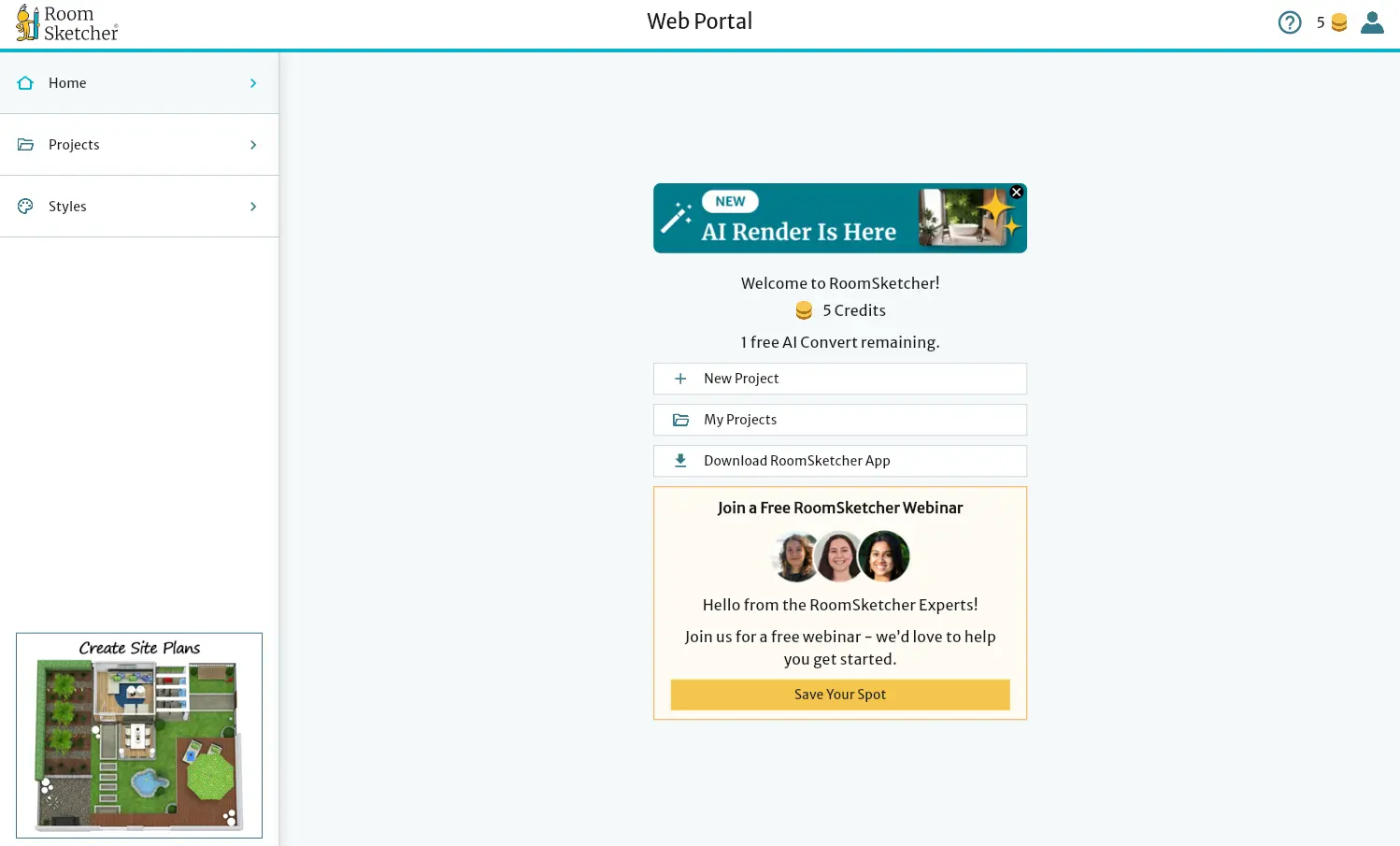
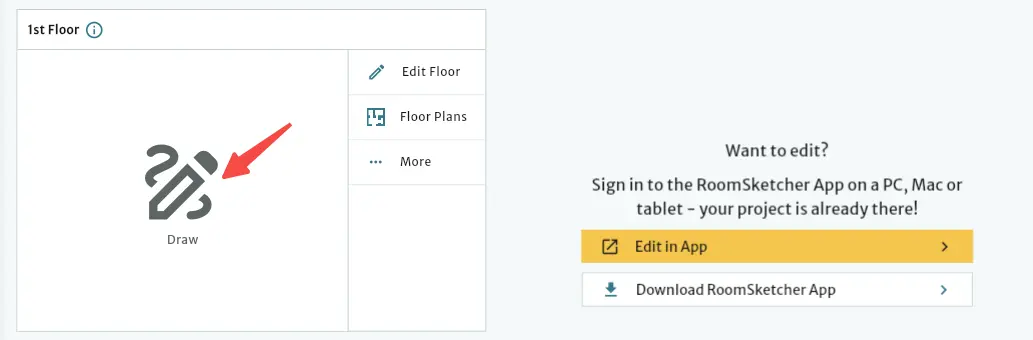
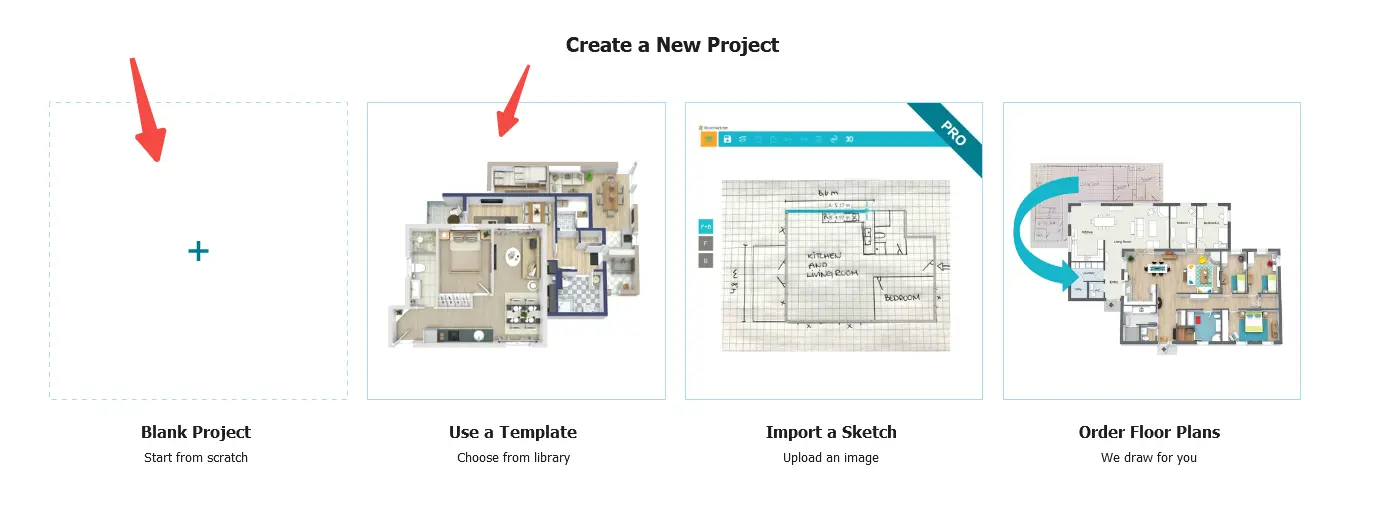
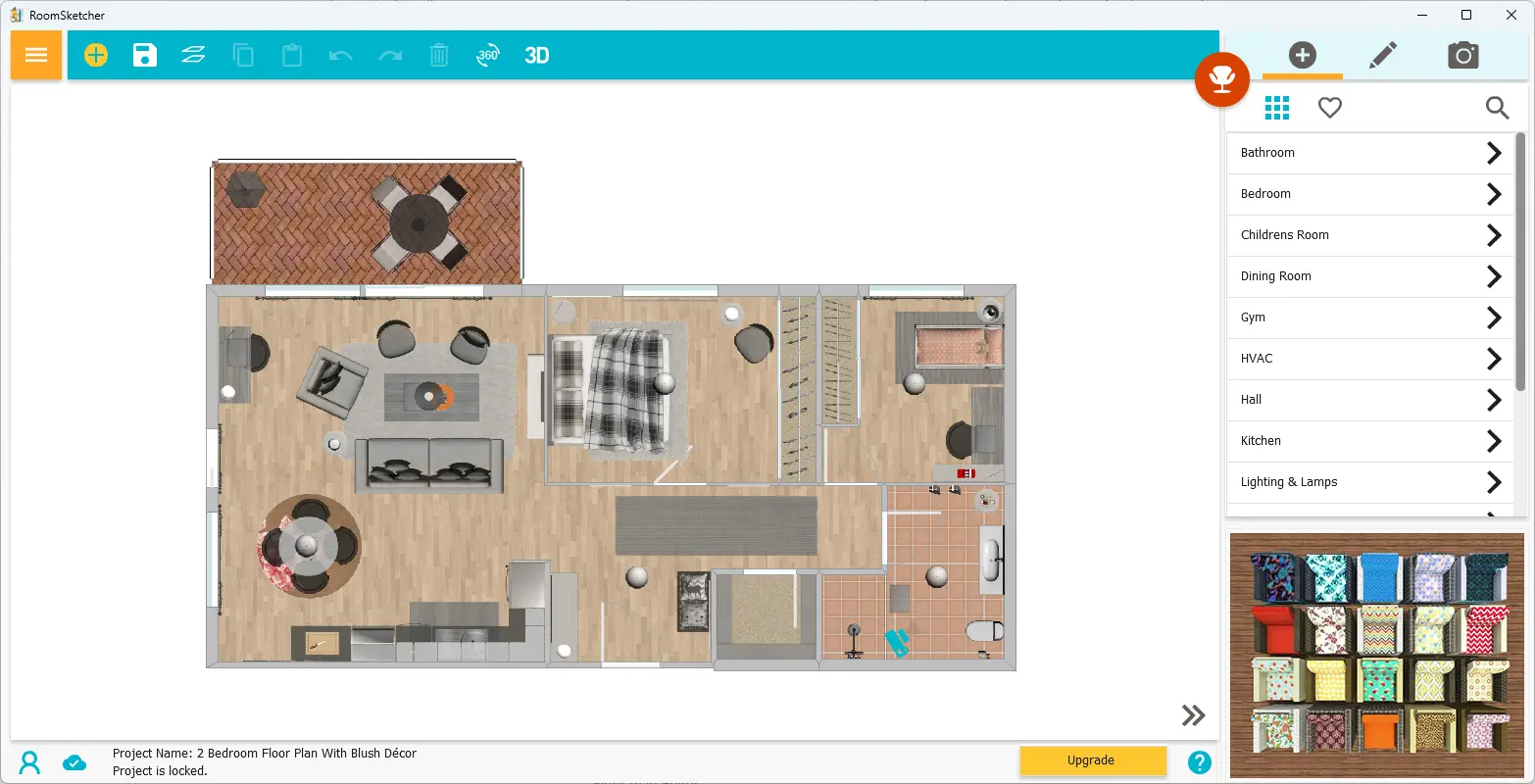
RoomSketcher took more setup before I could create my floor plan. Registration took about five minutes, and I spent another ten minutes figuring out how to get started. After creating a single-story project, I found the initial interface confusing and had to download the desktop software to continue. I tried drawing the layout myself, but the process seemed likely to take at least 30 minutes, so I switched to a template instead. I eventually found an 81 m² template with the same room configuration and used it as my starting point.
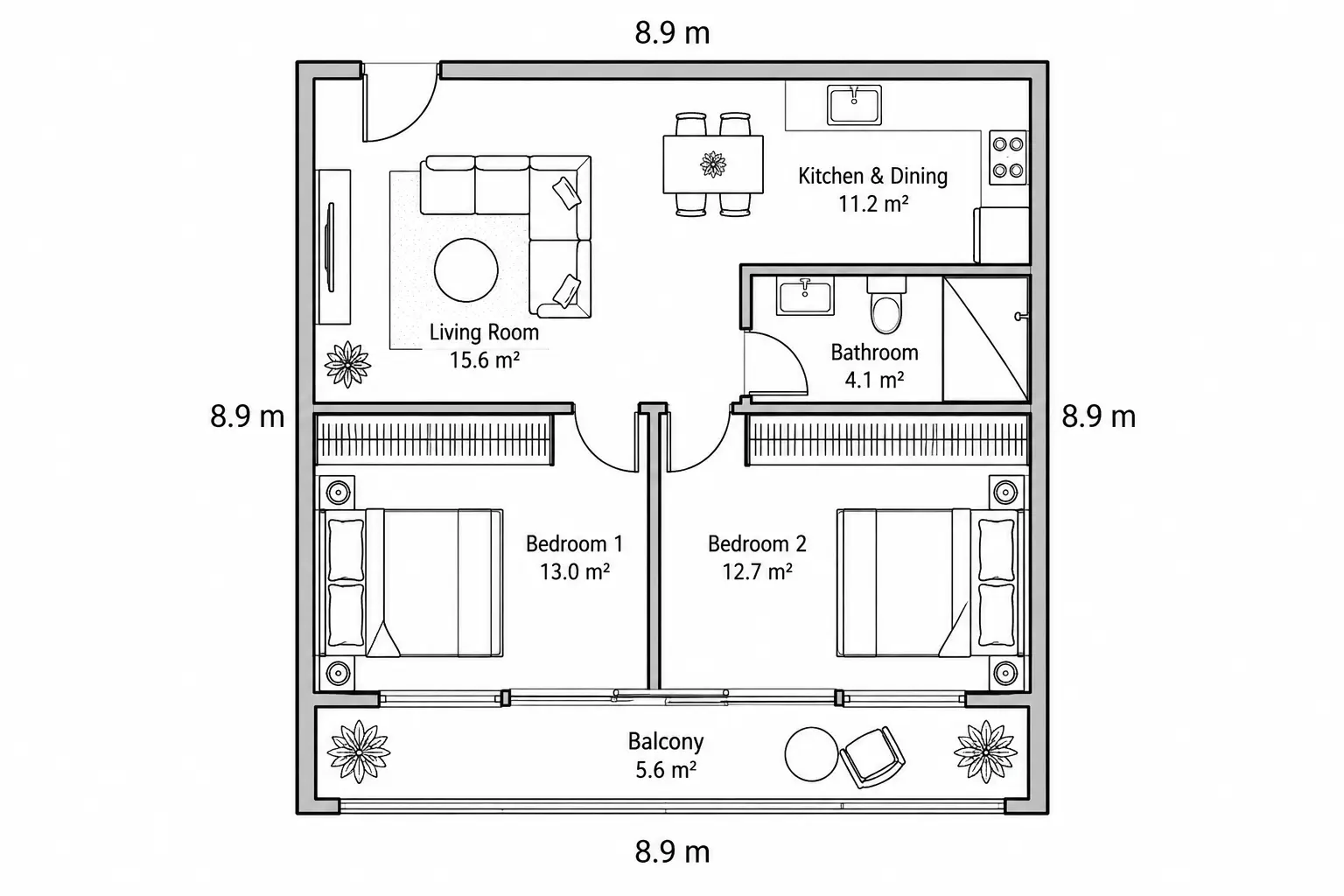
Floor Plan Maker offered a much quicker way to get started. I opened the House Floor Plan Maker, selected two bedrooms, one living room, one bathroom, and a balcony, then specified the floor area and layout shape. In about 30 seconds, it generated a floor plan matching my requirements. No registration was needed, and I could start using the tool immediately without being forced to log in.
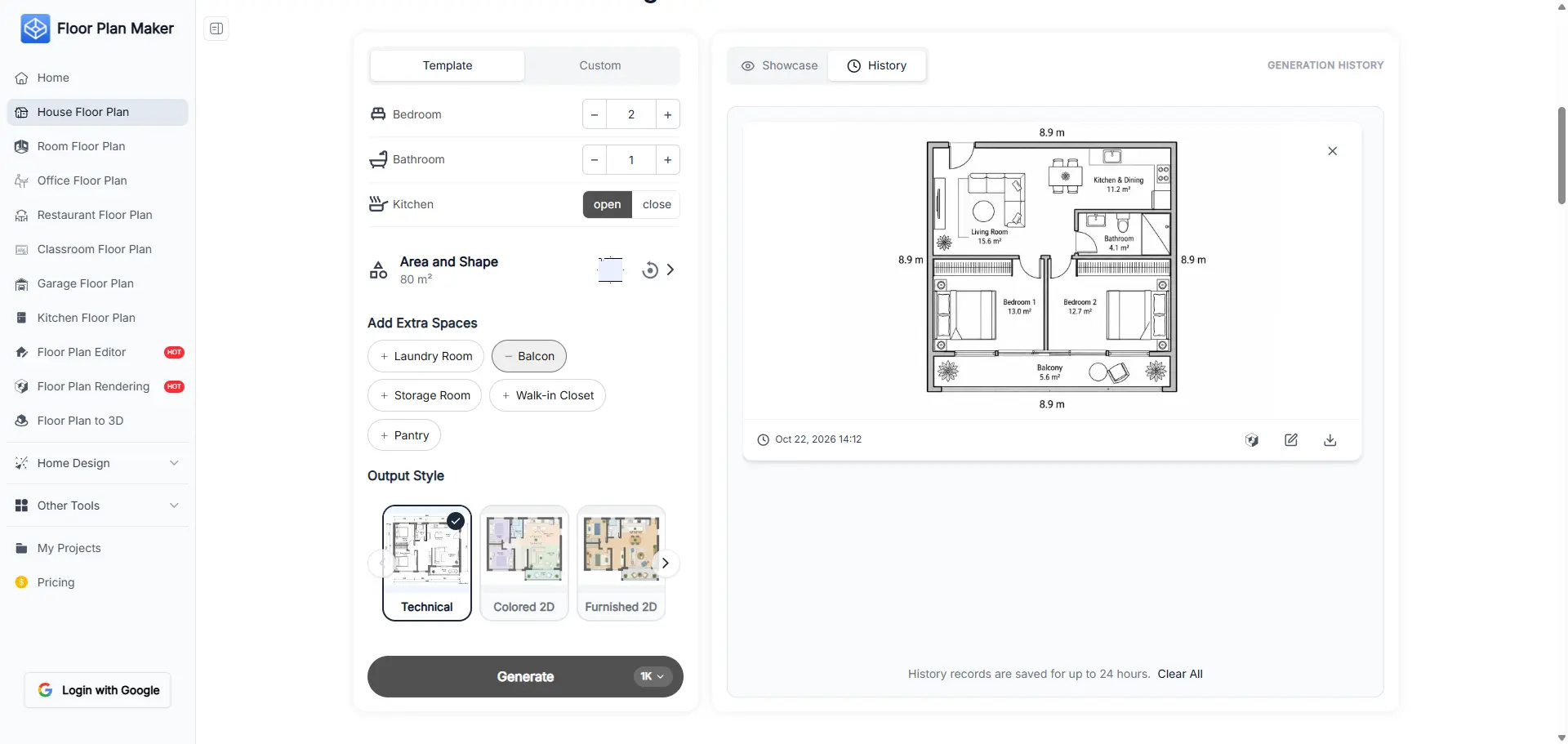
Key Difference: RoomSketcher offers multiple ways to create a floor plan, but getting started involved registration, software installation, and time spent learning the workflow. Floor Plan Maker lets you generate an initial layout directly from your requirements, with fewer steps and no mandatory login.
2. Which Tool Is Better for Editing Your Layout?
Both tools gave me a floor plan of an approximately 80 m², two-bedroom apartment with one living room. Since the layouts differed, I tested each tool with a different editing task to see how easily I could make the changes I wanted.
RoomSketcher: Replace Existing Furniture with a New Room Setup
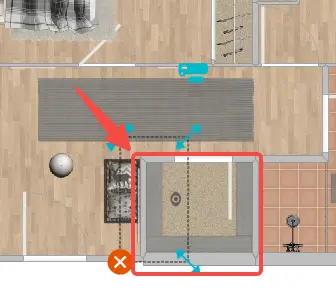
RoomSketcher gave me a hands-on way to redesign a space in three steps: clear out the existing furniture, choose new items from the built-in library, and arrange them to fit the room.
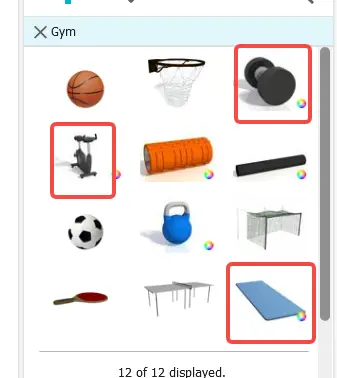
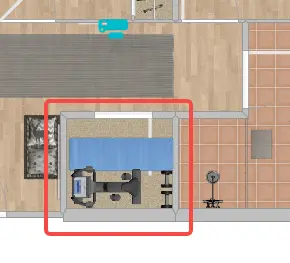
For my test, I removed the cabinets from a storage room and turned it into a small home gym. I searched the furniture library for gym equipment and added a treadmill, a yoga mat, and dumbbells. I then adjusted the size and orientation of some items to make them fit the available space. The entire makeover took about five minutes.
Floor Plan Maker: Edit Specific Areas with AI
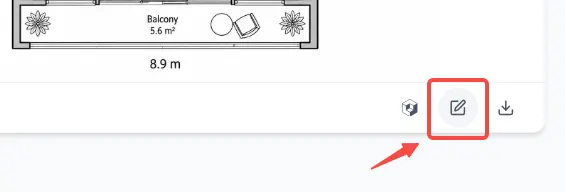
In Floor Plan Maker, I clicked the Edit button on the generated floor plan to open it in Floor Plan Editor. I was happy with the existing layout, so rather than redesigning a whole room, I wanted to add a desk and a stool to each bedroom.
I used the selection brush to mark the areas where I wanted the furniture, then described the items I wanted to add. About a minute later, the updated floor plan showed a desk and stool in each bedroom, positioned in the selected areas. The other parts of the layout remained unchanged in my test.
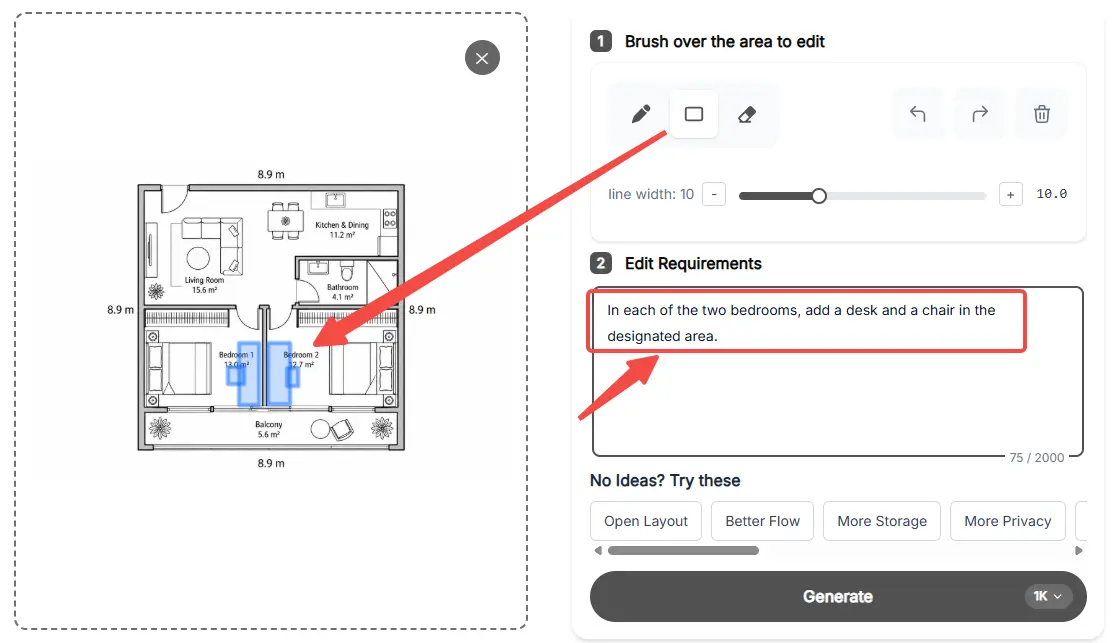
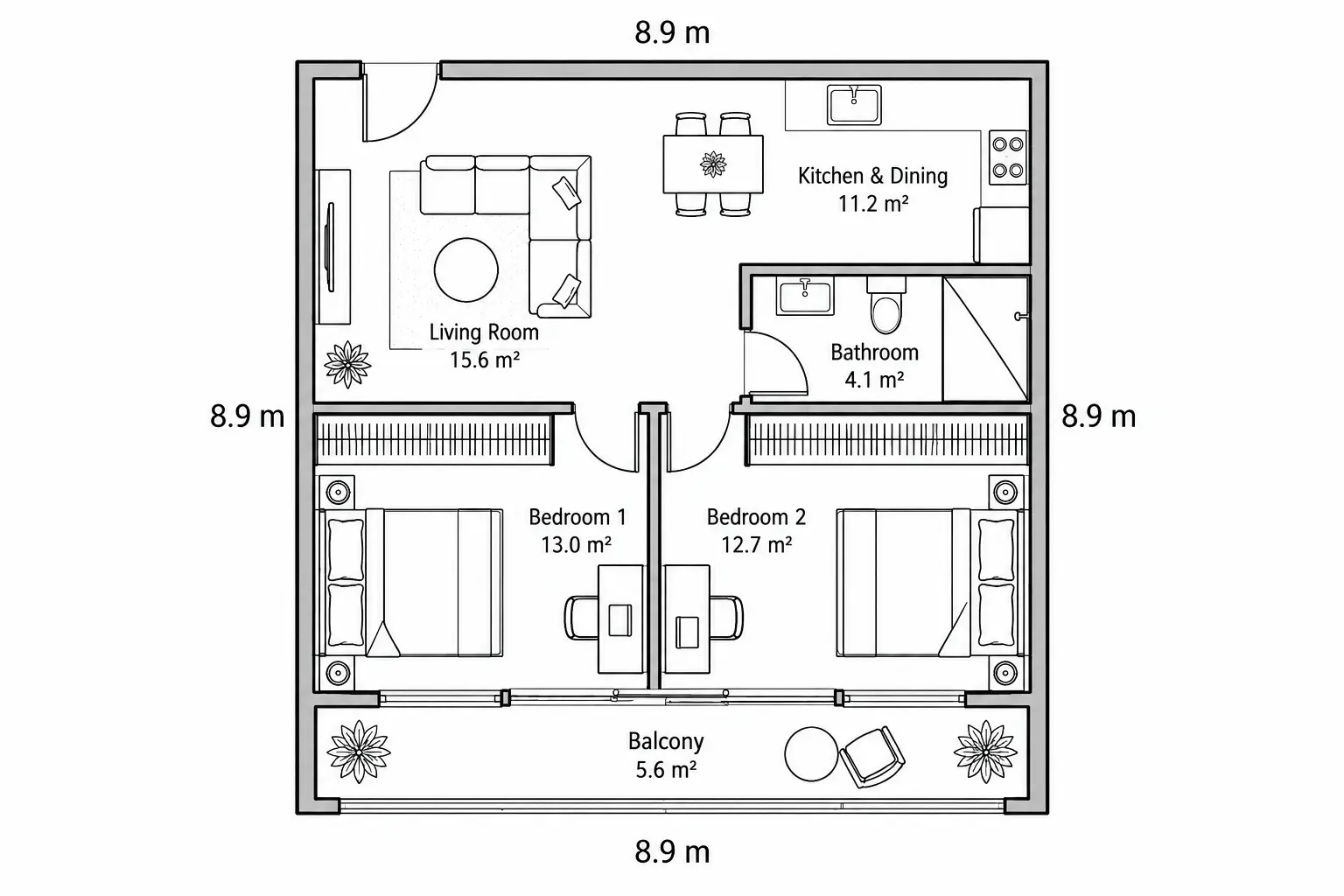
Key Difference: RoomSketcher works well when you want to manually arrange individual items from a furniture library. Floor Plan Maker offers a more direct way to request localized changes using a selection brush and text instructions, especially when you want to preserve the rest of your layout.
3. What Can You Create with Each Tool?
I compared Floor Plan Maker and RoomSketcher across three types of visual outputs: 2D floor plans, 3D models, and photorealistic interior renders. Both tools can turn a floor plan into visual presentations, but they offer different styles and workflows.
2D Floor Plans: Different Styles vs. Live Editing
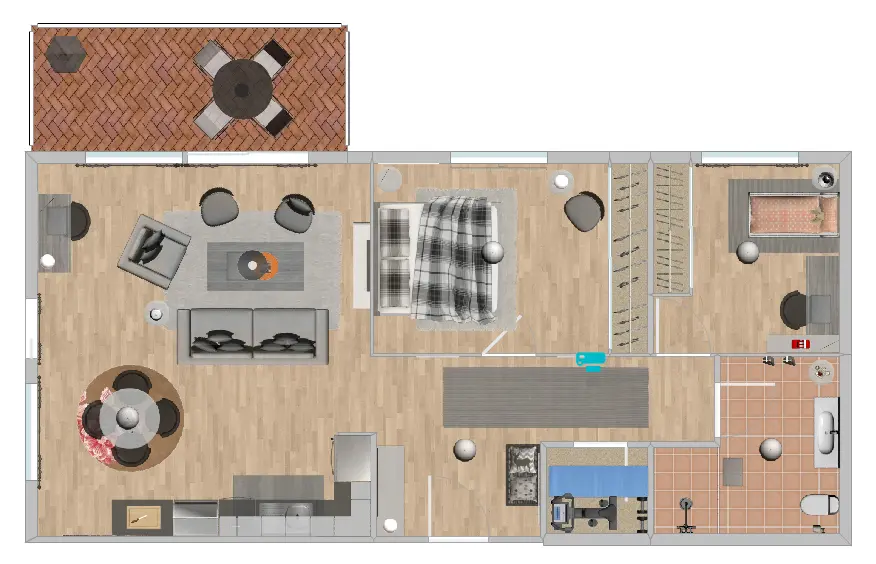
RoomSketcher uses a live editing view as its 2D floor plan. As you work, changes appear directly on the plan, with details such as flooring, sofa and bedding textures, and light fixtures that give the layout a more realistic appearance.
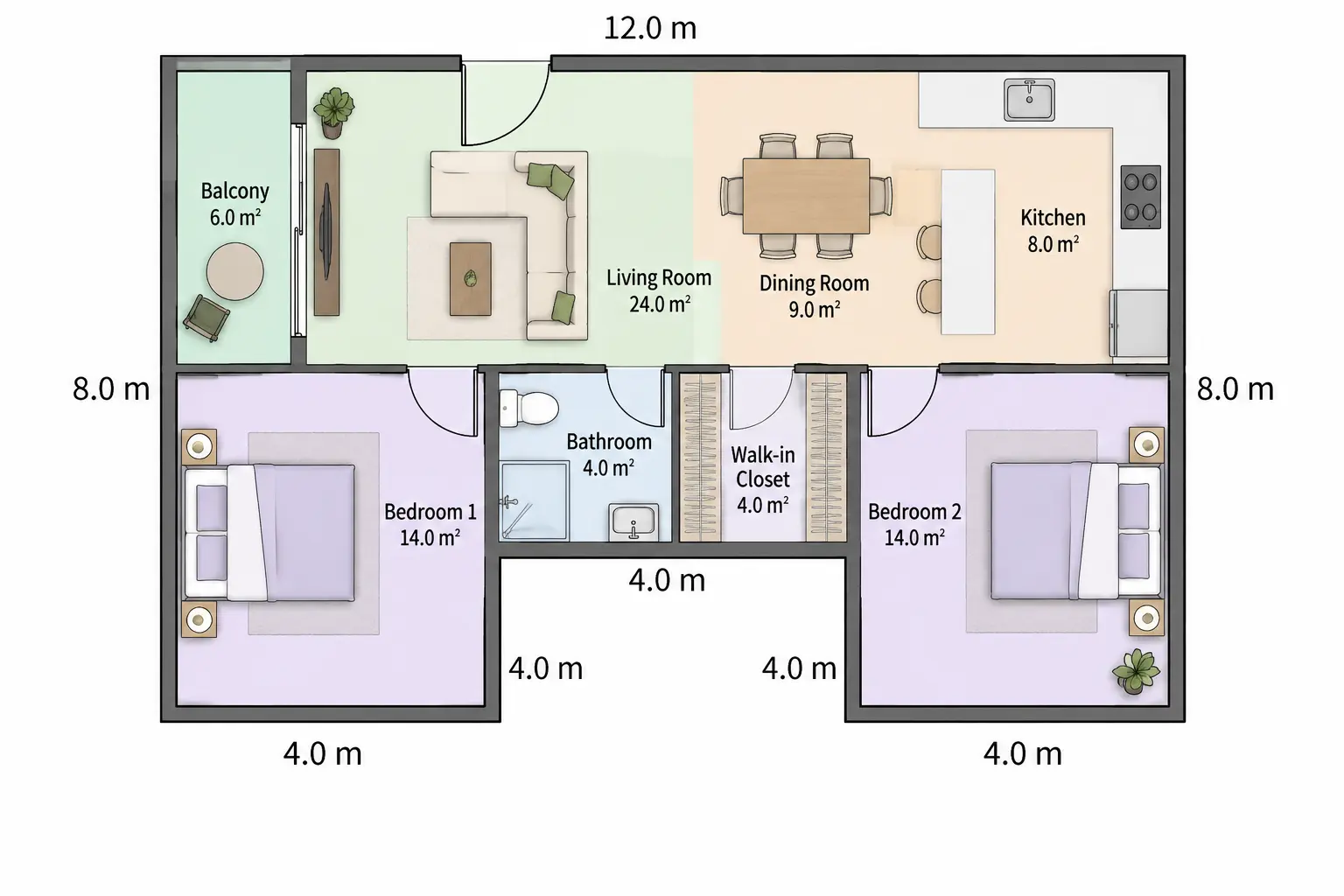
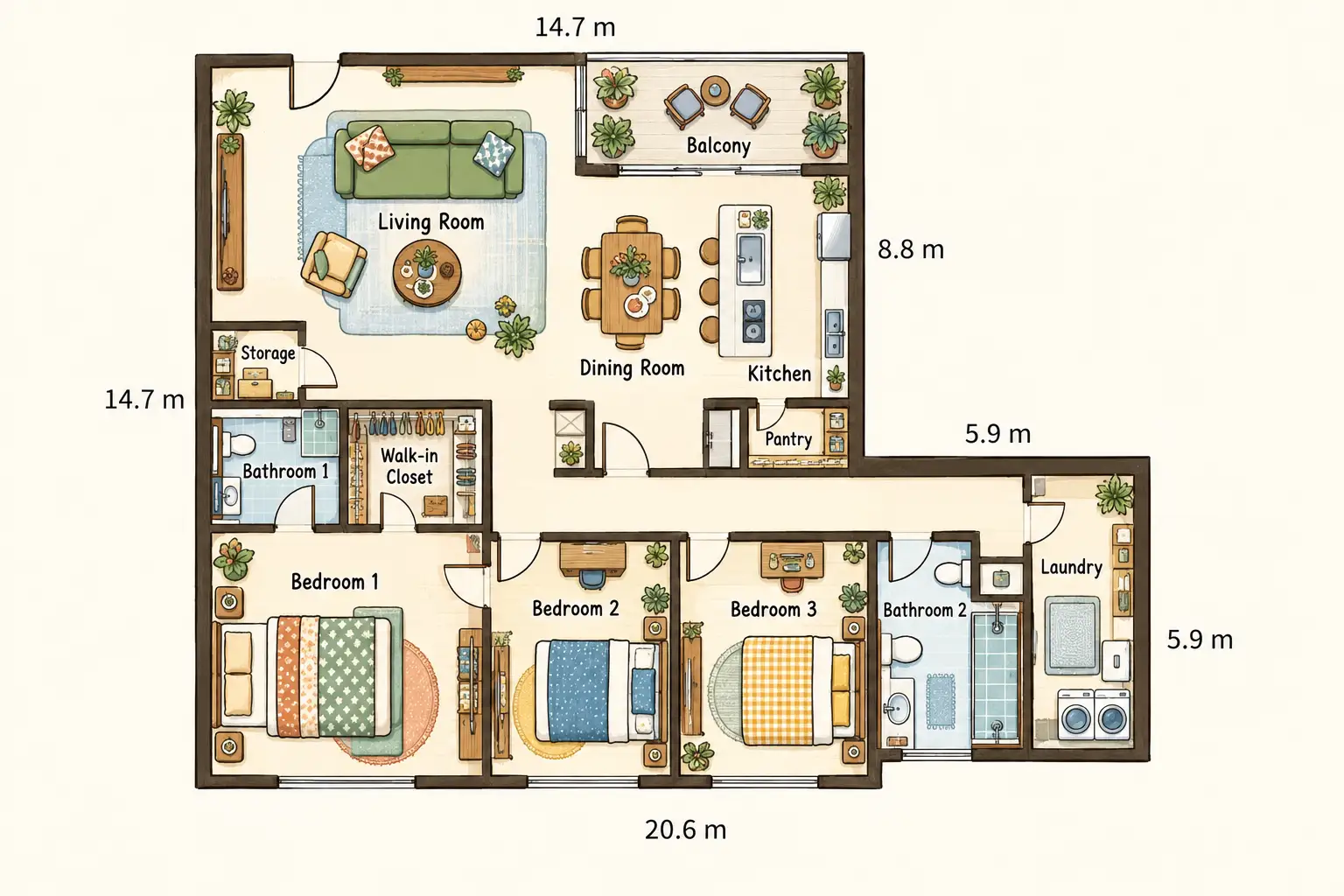
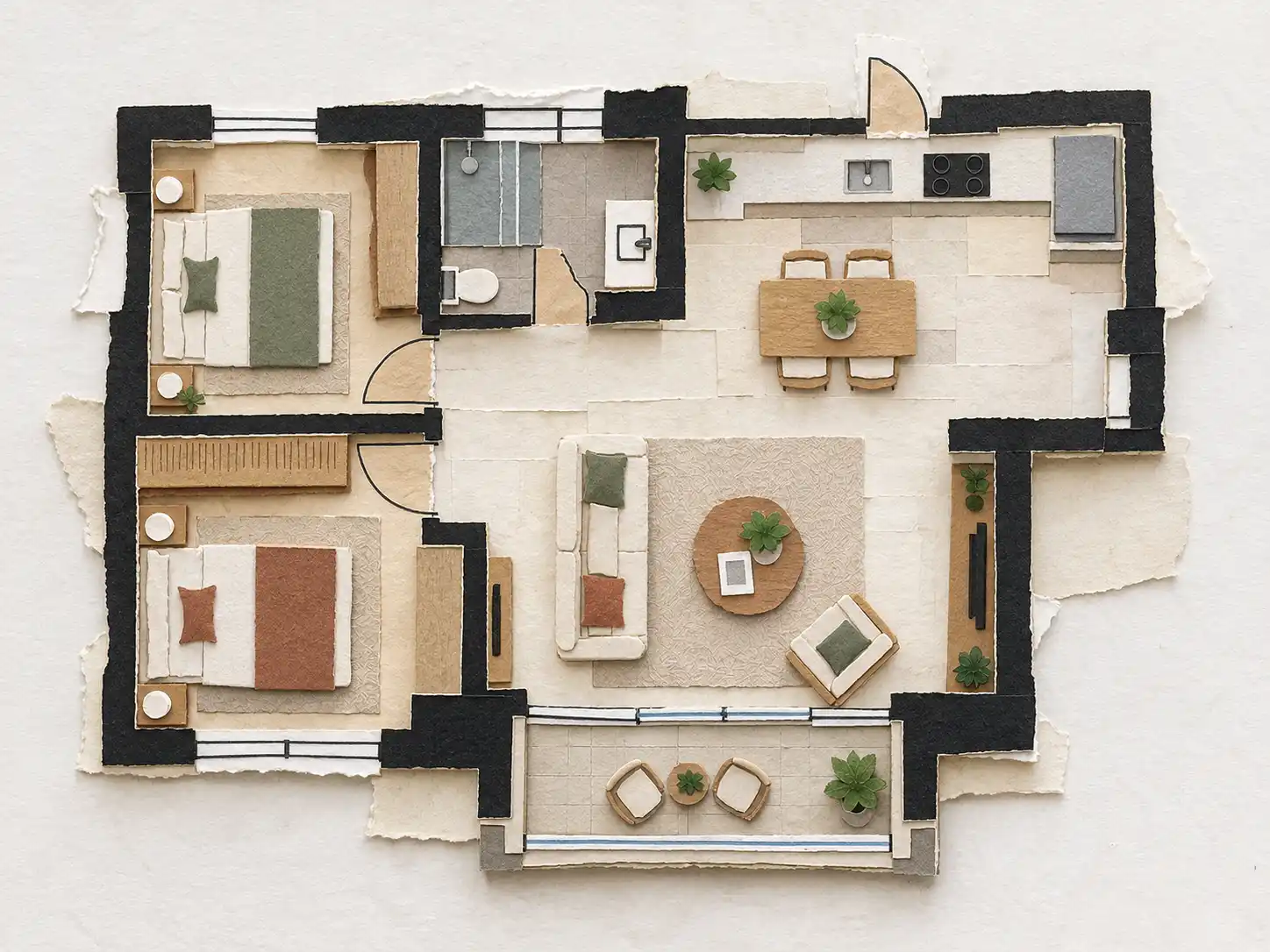
Floor Plan Maker is a tool that offers several 2D presentation styles. For this comparison, I generated floor plans with different layouts and configurations in Colored 2D, Illustrated 2D, and Paper Collage 2D styles. This gives you more flexibility in how you present a layout, whether you prefer a conventional colored plan, an illustrated look, or a paper-based visual style.
3D Models: Interactive Views vs. Rendered Images and GLB Models
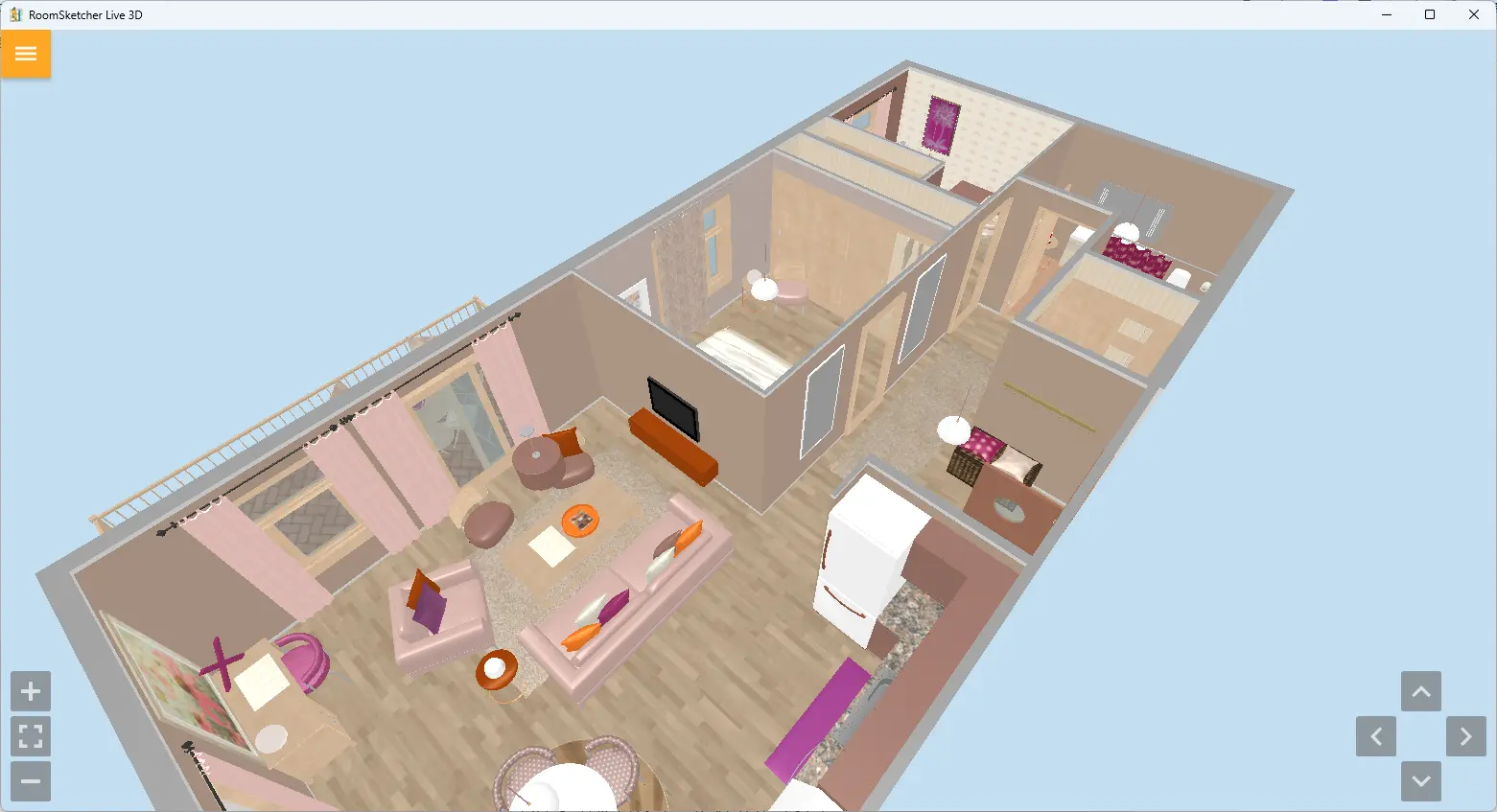
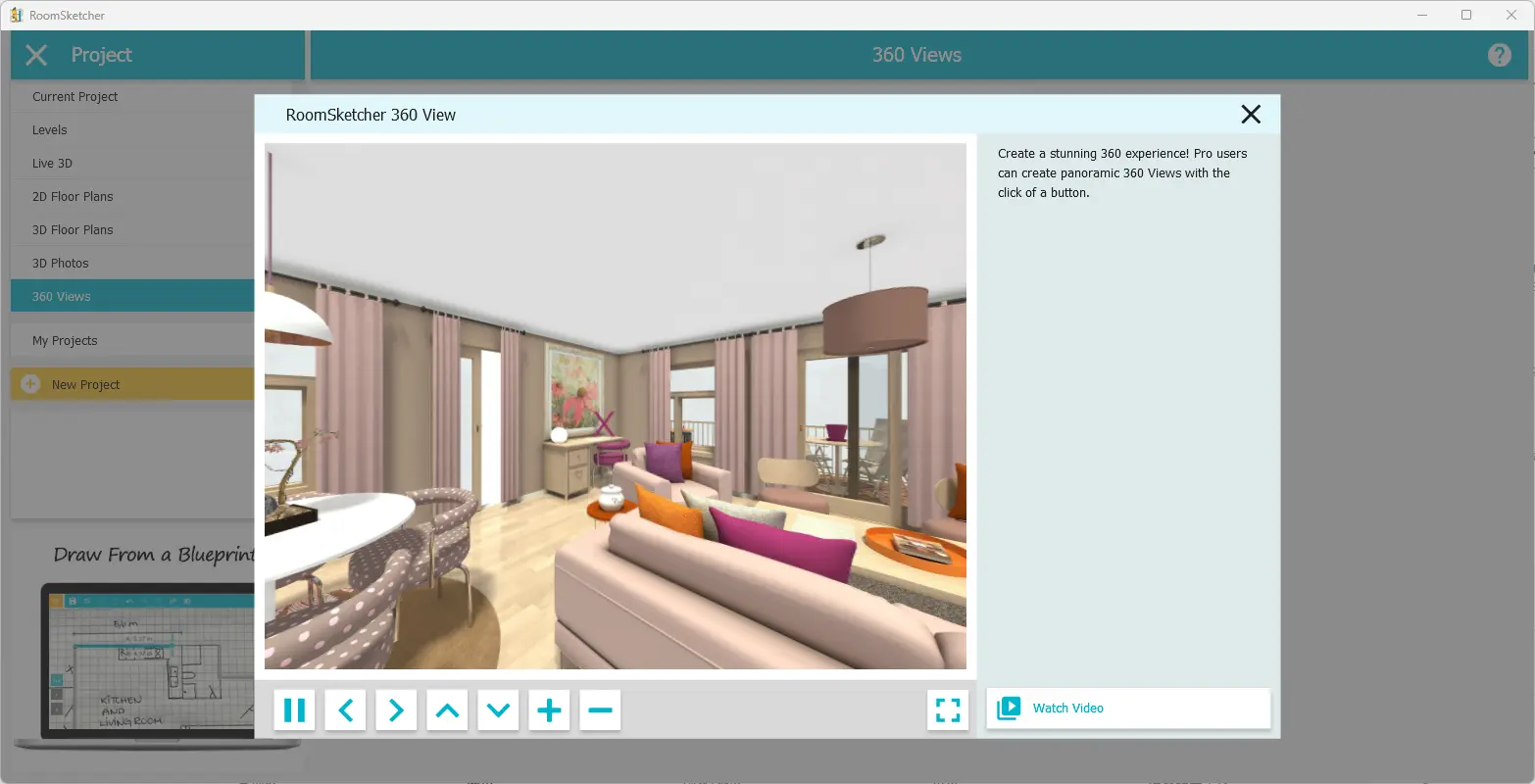
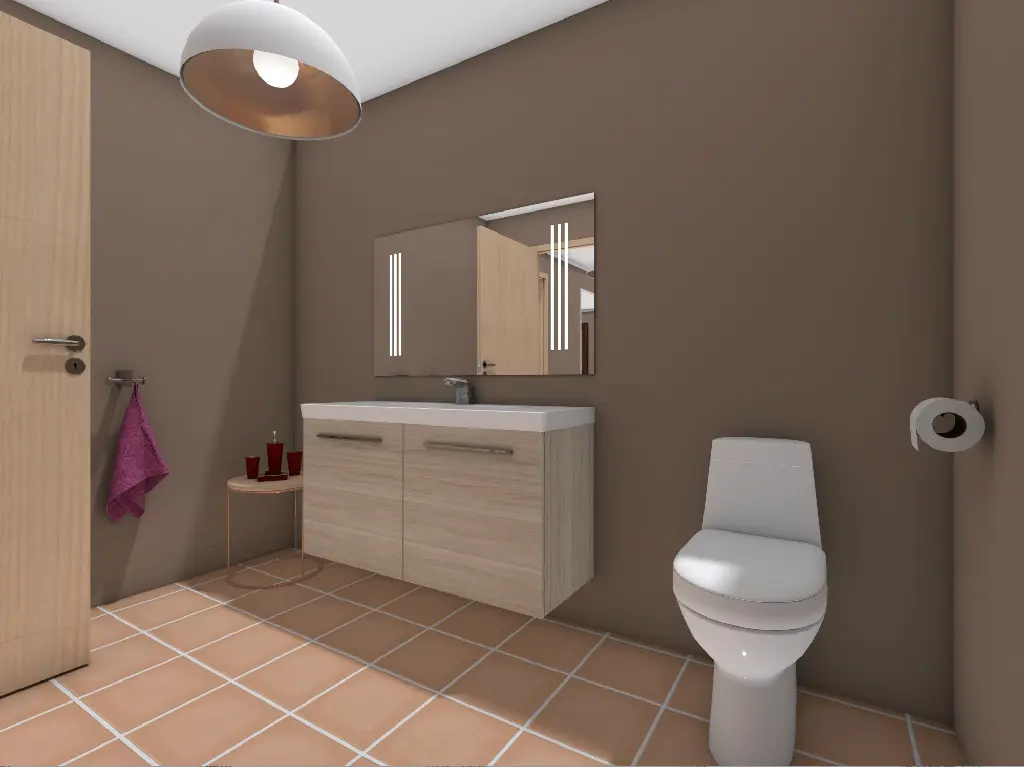
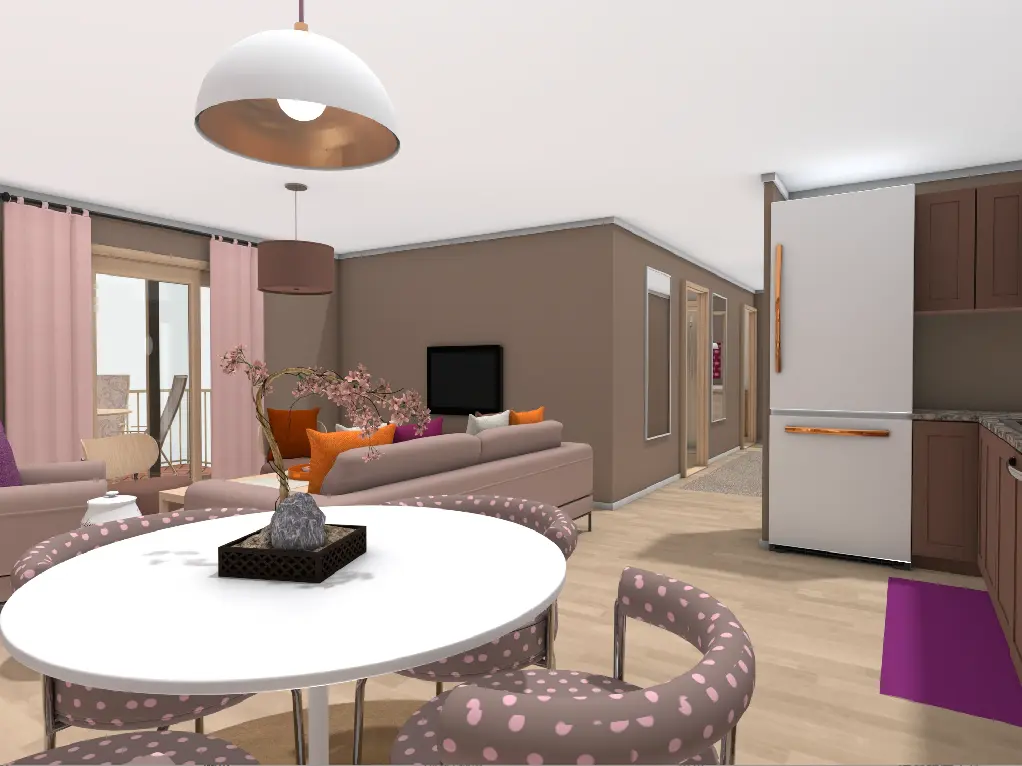
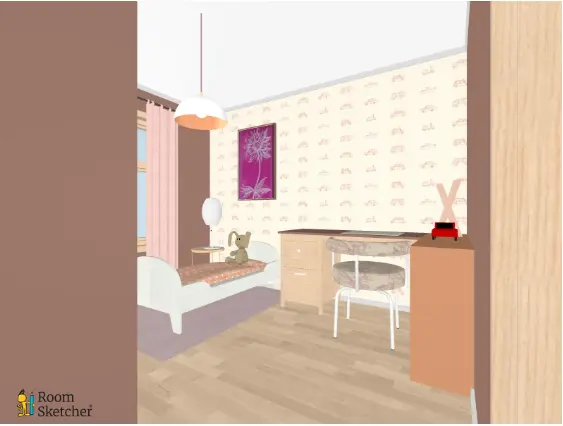
RoomSketcher lets you click the 3D button to open a separate, rotatable model view. However, in my test, some furniture details did not match the original 2D plan. The sofa and chairs looked different between the two views. RoomSketcher also offers 3D Photos, which let you choose viewpoints and create rendered images of individual rooms. I generated three views: the living room, bathroom, and children's bedroom.
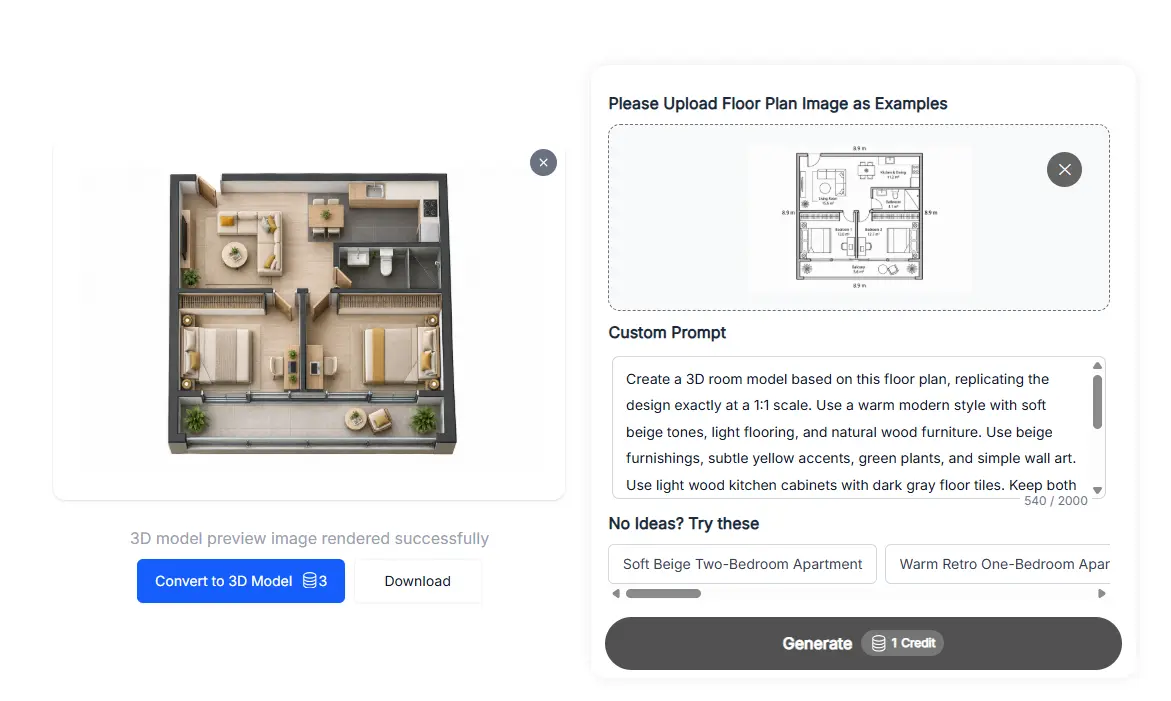
Floor Plan Maker offers two types of 3D output through its Floor Plan to 3D tool. Using the floor plan generated at the beginning of my test, I obtained a rendered 3D image and a GLB model. Unlike a static image, the GLB file is a 3D model that can be opened in compatible 3D viewers and workflows.
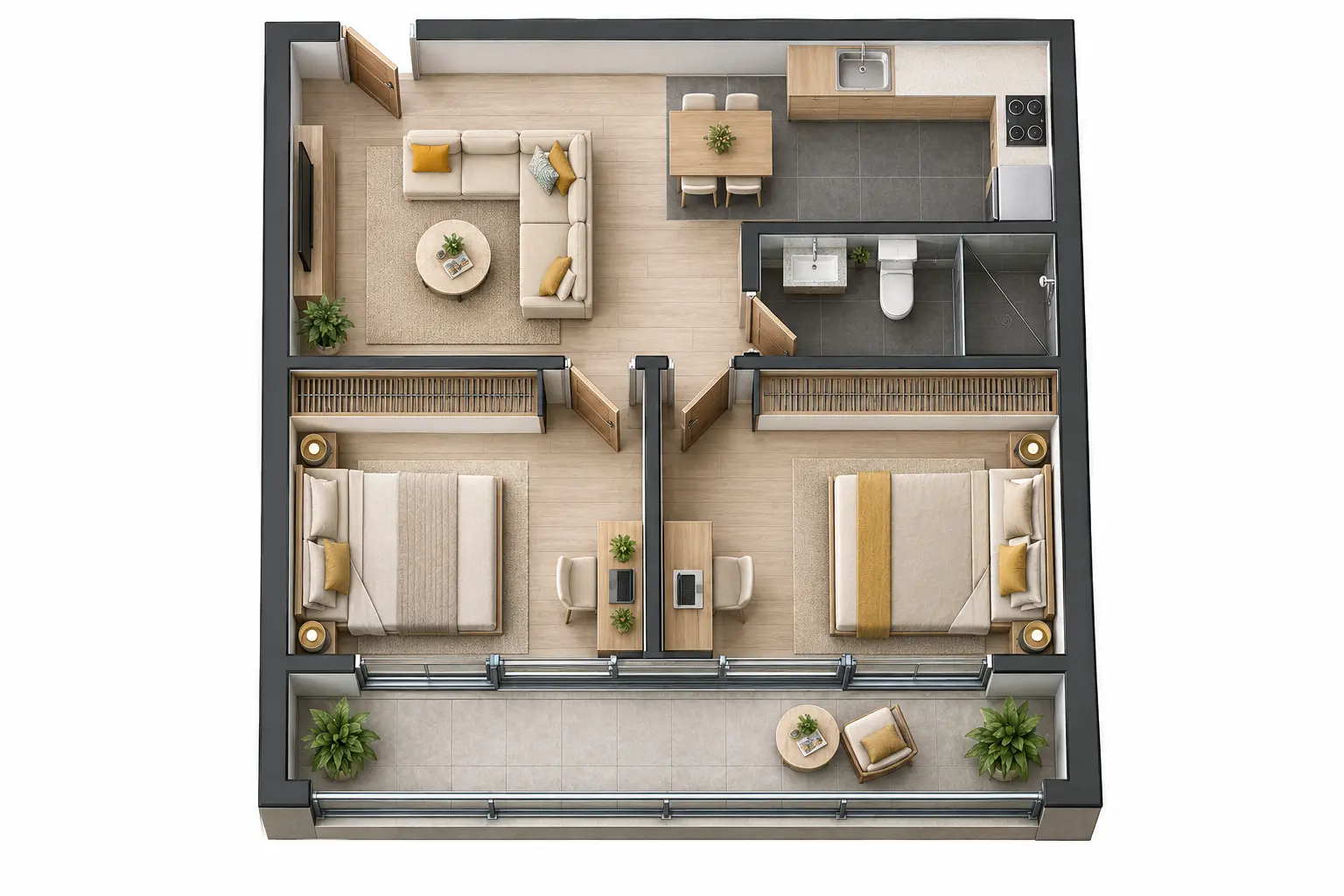
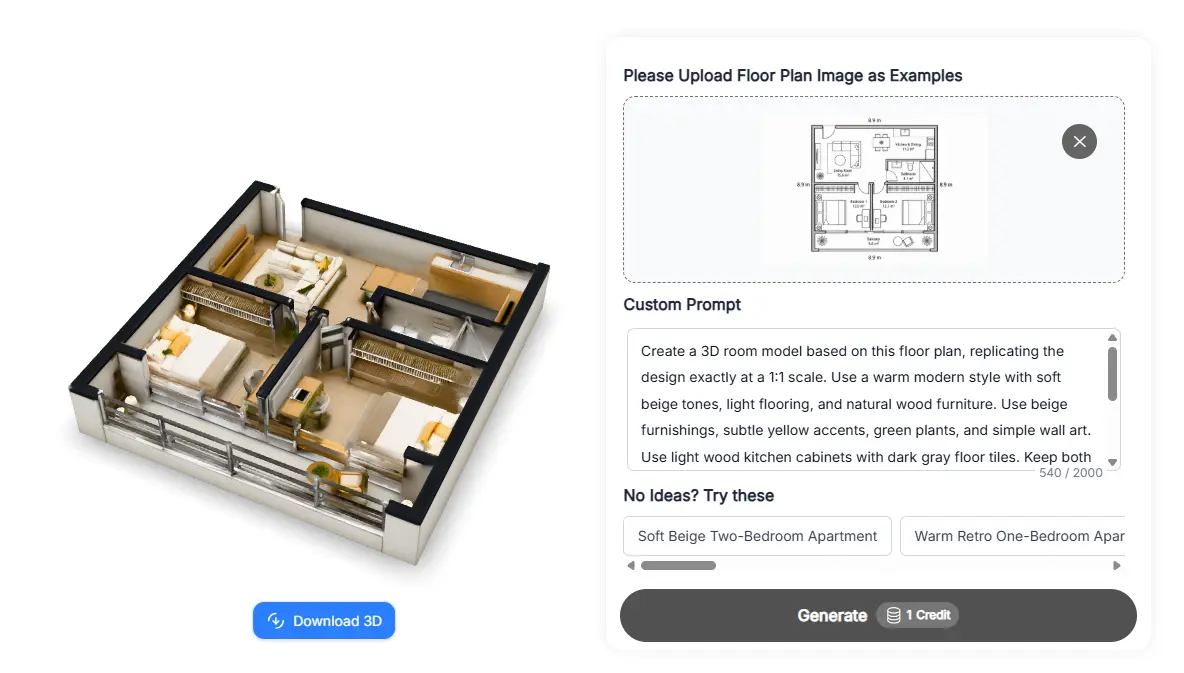
RoomSketcher also offers 360° views, which users can preview within their account and share with others.
Photorealistic Interior Renders: Room Views from a Floor Plan
RoomSketcher's 3D Photos provide rendered views of individual rooms, rather than actual photographs. In my test, I could choose viewpoints for the living room, bathroom, and children's bedroom.
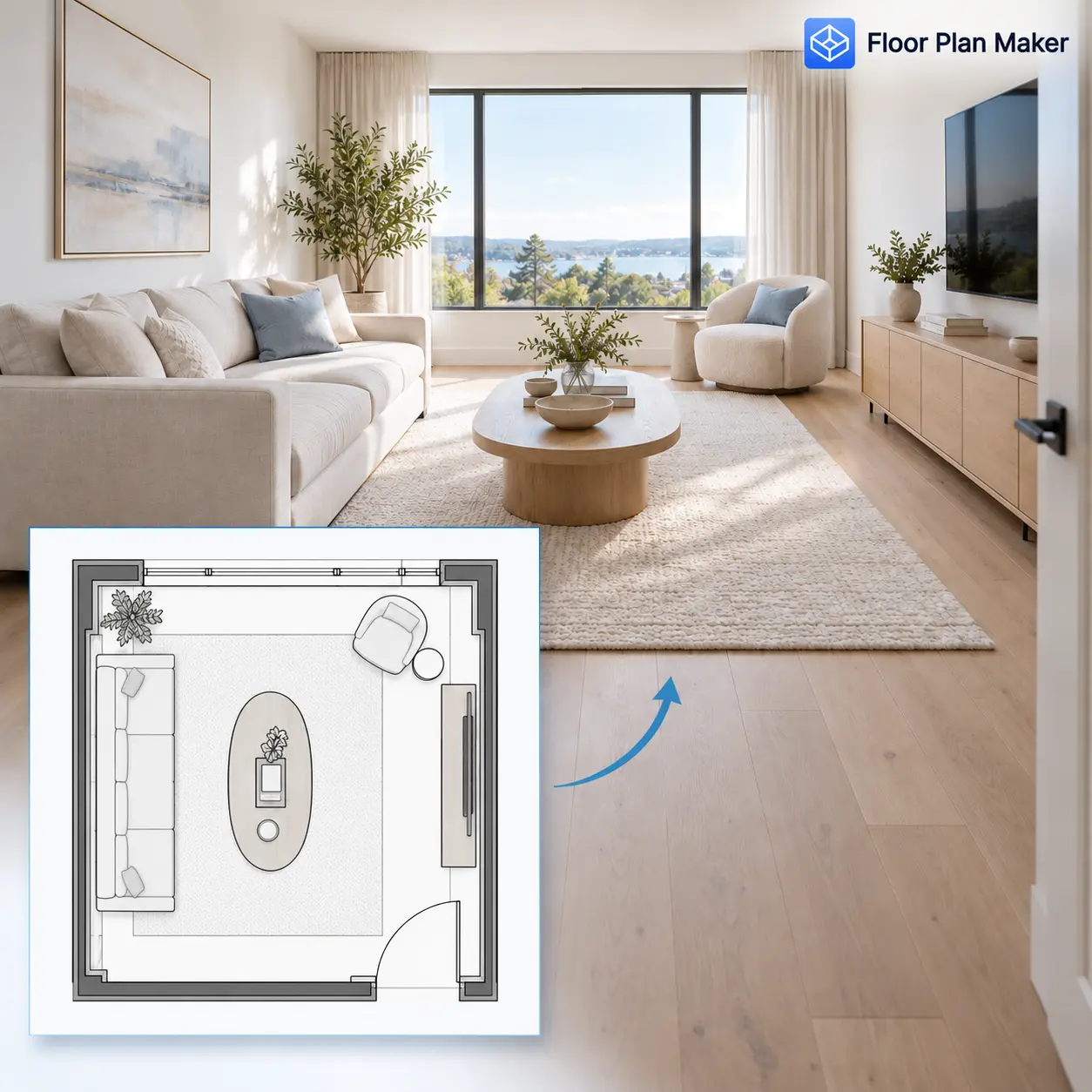
Floor Plan Maker offers a separate Floor Plan Rendering tool. I selected a coastal interior style and used the floor plan to generate realistic-looking interior images of the designed space. Rather than viewing the entire layout from above, I could see how the rooms might look with a coordinated interior design style.
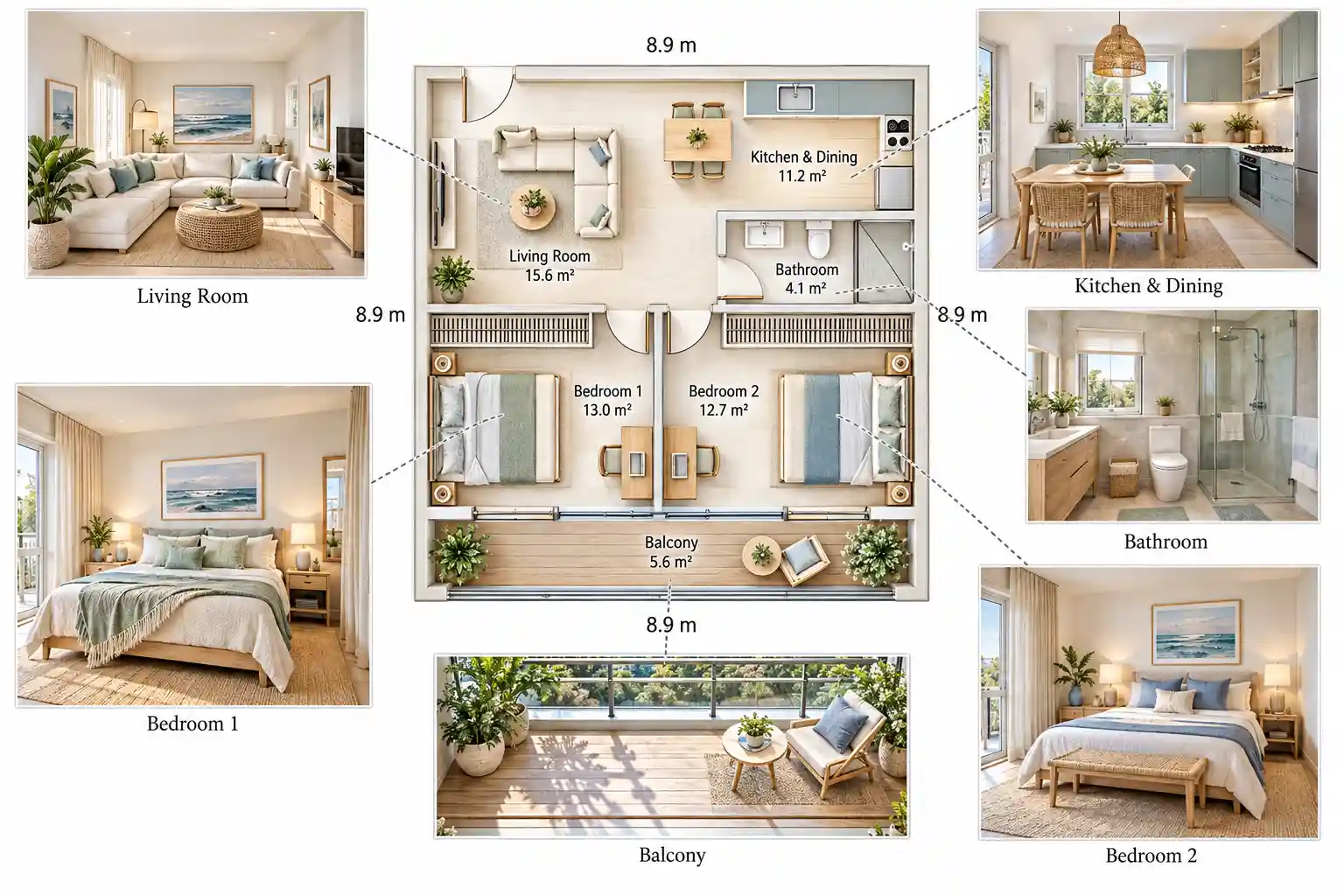
Key Difference: RoomSketcher combines live 2D editing with rotatable 3D views, rendered 3D Photos, and shareable 360° views. Floor Plan Maker offers multiple 2D presentation styles, a rendered 3D image alongside a downloadable GLB model, and a dedicated tool for generating style-based interior renders from a floor plan. The main distinction lies in the range of visual outputs and how you can use them, from interactive presentations to reusable 3D models and realistic-looking room images.
4. How Can You Export and Use Your Results?
Both tools offer multiple ways to view your designs, but they differ in which results you can download and use outside the platform.
RoomSketcher: Multiple Viewing Options
RoomSketcher supports five main output types:
- Live 3D: Explore your design interactively.
- 2D Floor Plan: View the layout from above.
- 3D Floor Plan: See the layout in a 3D view.
- 3D Photos: Create rendered images from selected viewpoints.
- 360° Views: Preview and share an immersive view.
In my test, three types of image outputs could be downloaded or printed, while the remaining views were only available to view within the platform.
Floor Plan Maker: Downloadable Images and 3D Models
Floor Plan Maker supports direct downloads of generated results, including:
- 2D Floor Plans: Save different floor plan styles as images.
- 3D Images: Download rendered floor plan visuals.
- GLB Models: Export a 3D model for viewing or further work in compatible 3D software.
Key Difference: RoomSketcher offers multiple viewing and presentation formats, but download options vary by output type. Floor Plan Maker lets you download image results and export a GLB model, making it easier to keep your files and use them in compatible external workflows.
5. What Can You Do Without Paying?
Both tools offer free access, but their usage limits and paid plans differ. I tested what was available without paying and compared it with each tool's listed pricing.
RoomSketcher: Free Credits and Project Limits
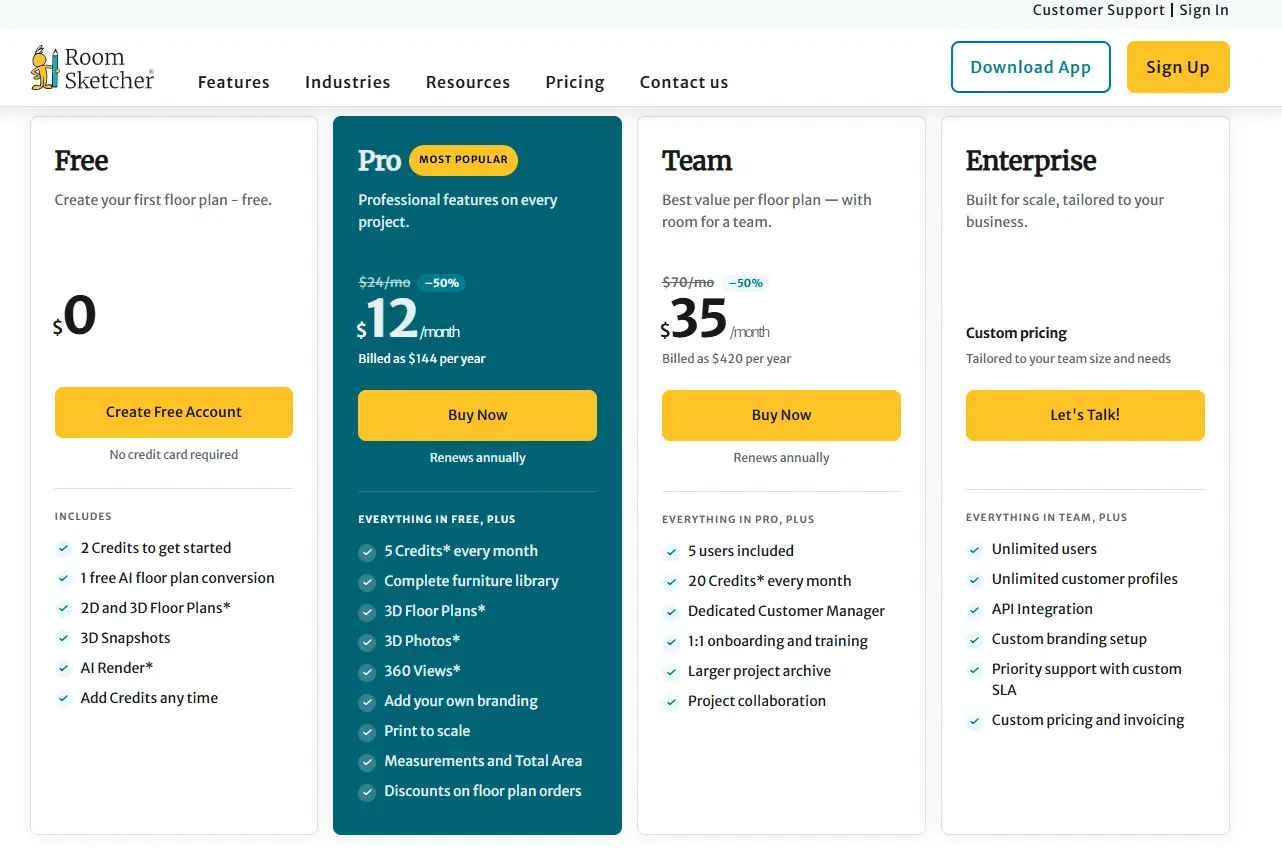
RoomSketcher advertises a free plan with limited credits and restrictions on features such as 3D viewing. However, after registering, I found that my account appeared to include access to features associated with a paid plan, including capabilities I hadn't expected to be available for free.
This was surprising, and it was unclear whether the difference came from an account-specific offer, a change to the plan, or outdated pricing information. If you're considering RoomSketcher, check the features available in your own account before upgrading.
RoomSketcher's paid plans start at $12 per month in the pricing information I reviewed, with support for up to five projects and unlimited edits to those projects.
Floor Plan Maker: Free Tools with Optional Upgrades
Floor Plan Maker lets you use almost all its tools without registering or logging in. The main exception is the Floor Plan to 3D Model tool.
After signing in, you receive 10 credits per day, and most tools cost just 1 credit per use. This makes it possible to try most features on the free version before deciding whether to upgrade.
Paid plans start at $19.99 per month for 200 credits. They are mainly useful if you need more generations or higher-resolution outputs.
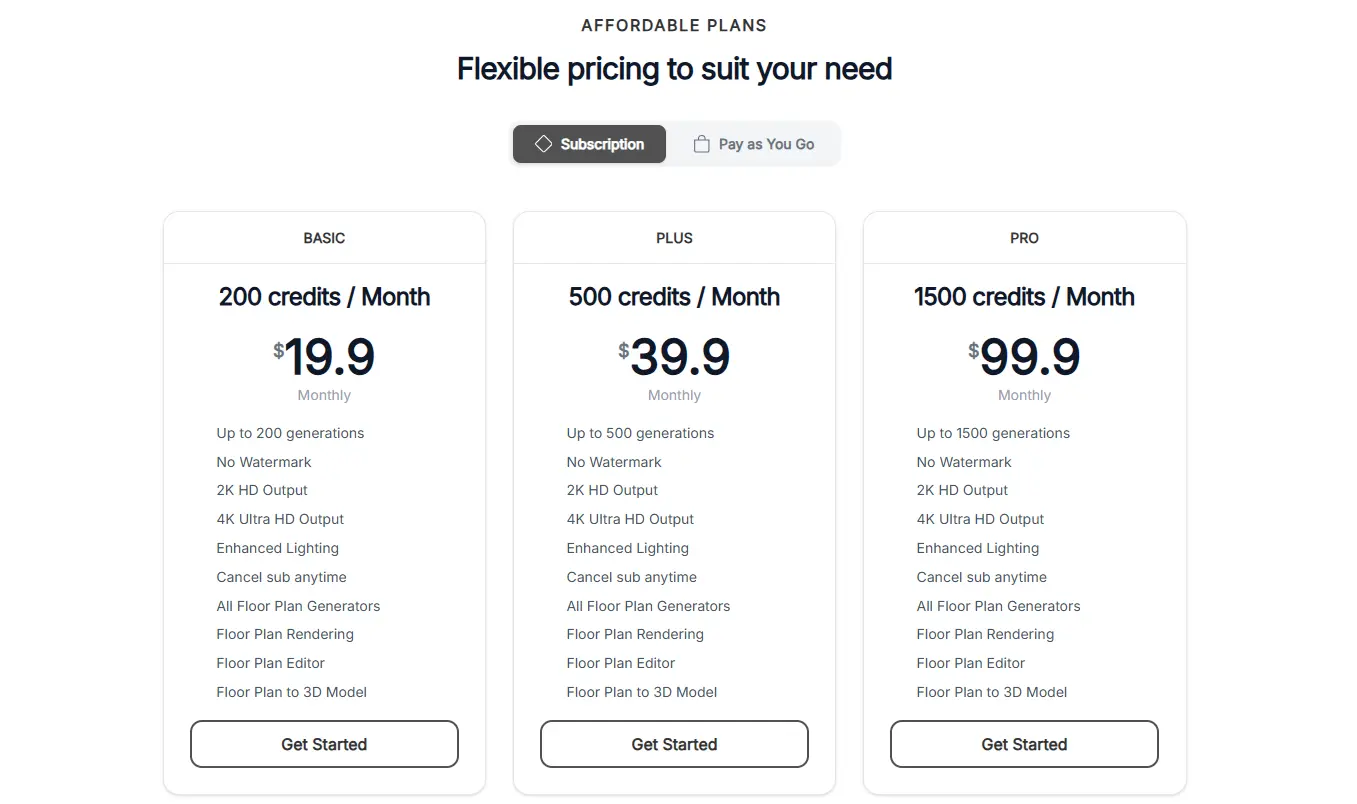
Key Difference: Floor Plan Maker offers broad access without requiring an account, along with daily credits for signed-in users. RoomSketcher's free-plan restrictions are less clear in my test because the features available after registration appeared to differ from its advertised free access. Check the current plan details and your account's actual permissions before making a decision.
Which One Should You Choose?
The right tool depends on how you want to create floor plans and what you need to do with the results.
| Your Needs | Better Fit | Why |
|---|---|---|
| Create a floor plan from room requirements in seconds | Floor Plan Maker | Generate a layout with AI without mandatory registration. |
| Make targeted changes without manually rearranging everything | Floor Plan Maker | Select an area and describe the changes you want. |
| Create photo-style interior renders from a floor plan | Floor Plan Maker | Use Floor Plan Rendering to generate room visuals in a chosen style. |
| Export a reusable 3D model | Floor Plan Maker | Download a GLB model for compatible 3D software. |
| Manually arrange furniture and refine individual items | RoomSketcher | Use the furniture library to position and adjust objects. |
| Start with a template and present spaces interactively | RoomSketcher | Combine template-based planning with 3D Photos and 360° views. |
| Keep editing a small number of projects at a lower starting price | RoomSketcher | Its listed entry-level plan starts at $12/month for five projects with unlimited edits. |
Our recommendation: Floor Plan Maker is a strong fit for users who want quick AI-assisted layouts, targeted edits, and varied visual outputs. RoomSketcher is worth considering if you prefer manual control over furniture placement and interactive 3D presentations. Try both tools with the same requirements before choosing a paid plan.
Compare More Floor Plan Tools
Compare floor plan creation, 3D home design, customization options, and pricing to find the right workflow for your project.
Compare their floor plan creation workflows, editing tools, supported outputs, and free-use options.
See how the two tools compare in floor plan creation, home design, 3D visualization, and pricing.
Frequently Asked Questions
Is Floor Plan Maker a good alternative to RoomSketcher?
Yes. Floor Plan Maker is a good alternative if you want to generate floor plans from room requirements, make AI-assisted edits, and create 2D plans, 3D models, or photorealistic interior renders. RoomSketcher may be a better fit if you prefer manually arranging furniture and presenting designs through interactive 3D views.
Can I use Floor Plan Maker for free?
Yes. You can use almost all Floor Plan Maker tools without registering or logging in. After signing in, you receive 10 credits per day, and most tools cost one credit per use. The Floor Plan to 3D Model tool is an exception to access without an account.
Can RoomSketcher and Floor Plan Maker create 3D floor plans?
Yes. Both tools offer 3D visualizations of floor plans. RoomSketcher provides a rotatable 3D view, 3D Photos, and 360° views. Floor Plan Maker can generate rendered 3D floor plan images and export a GLB model for use with compatible 3D software.
Which is better for creating realistic interior renders from a floor plan?
Floor Plan Maker is a practical choice if you want to turn a floor plan into realistic-looking interior images in a chosen style. Its Floor Plan Rendering tool generates room views from your layout, while RoomSketcher's 3D Photos provide rendered views from selected viewpoints. The best option depends on the type of presentation you need.
For Homeowners and Design Professionals
Ready to Turn Your Floor Plans into Realistic Renders?
Whether you're planning your own home or creating designs for clients, Floor Plan Maker helps you turn floor plans into realistic interior renders without spending hours on traditional workflows or money on expensive software. Try it for free and see how AI meets architectural design.
Try Floor Plan Rendering Free