
How to Turn Floor Plans Into Photorealistic Interior Renders
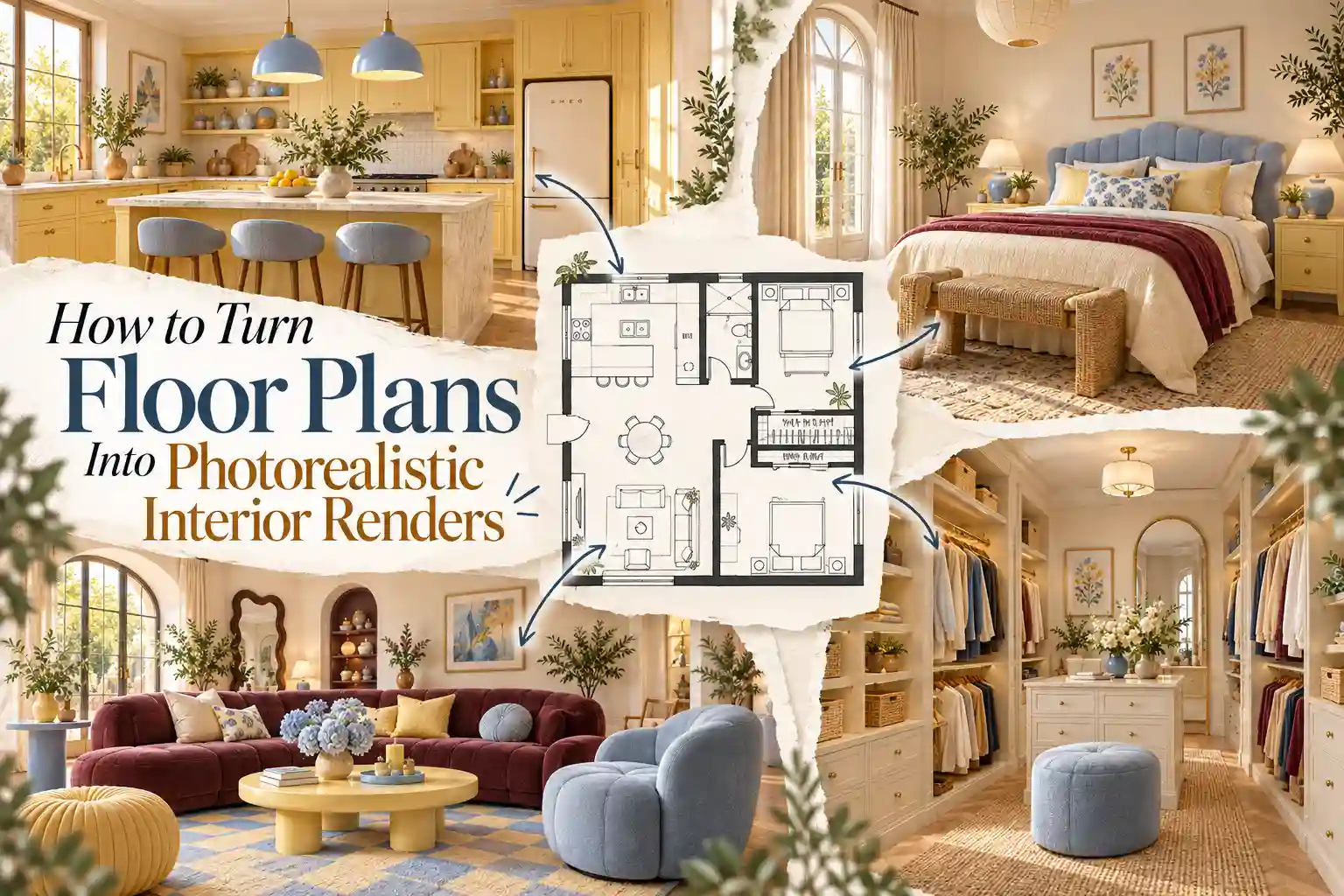
You have the floor plan, and you know where the furniture will go. But what will the room actually look like once the colors, materials, and lighting come together? A floor plan can show you the layout, but imagining the finished interior is another story.
Traditional 3D rendering can help, but building a scene from scratch often means modeling furniture, applying materials, adjusting lighting, and fine-tuning the details. It takes time and can be challenging if you're not familiar with 3D design software.
That's where photorealistic interior renders can help. You can turn your floor plan into realistic room visuals without spending hours building a 3D scene from scratch.
What Is Photorealistic Interior Rendering?
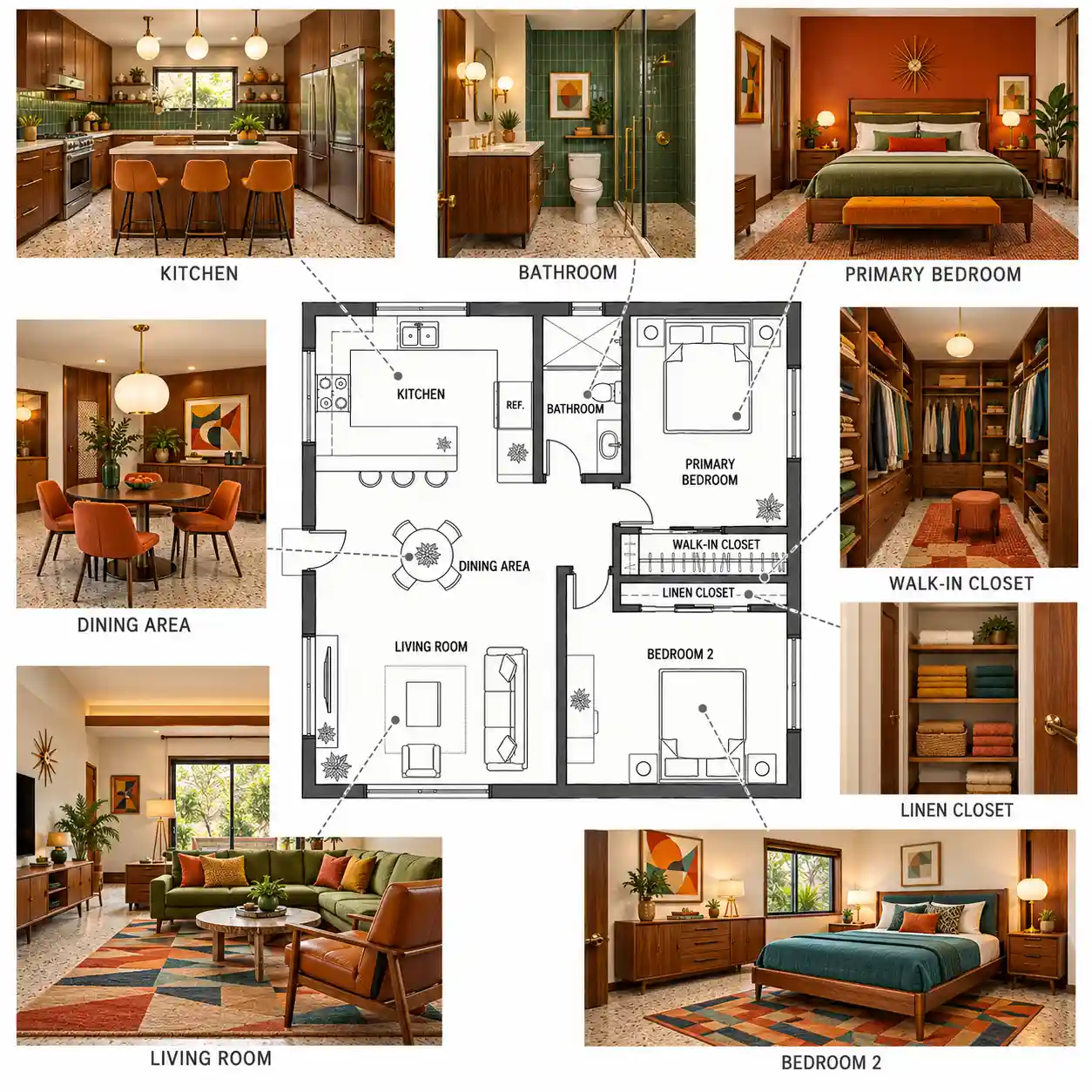
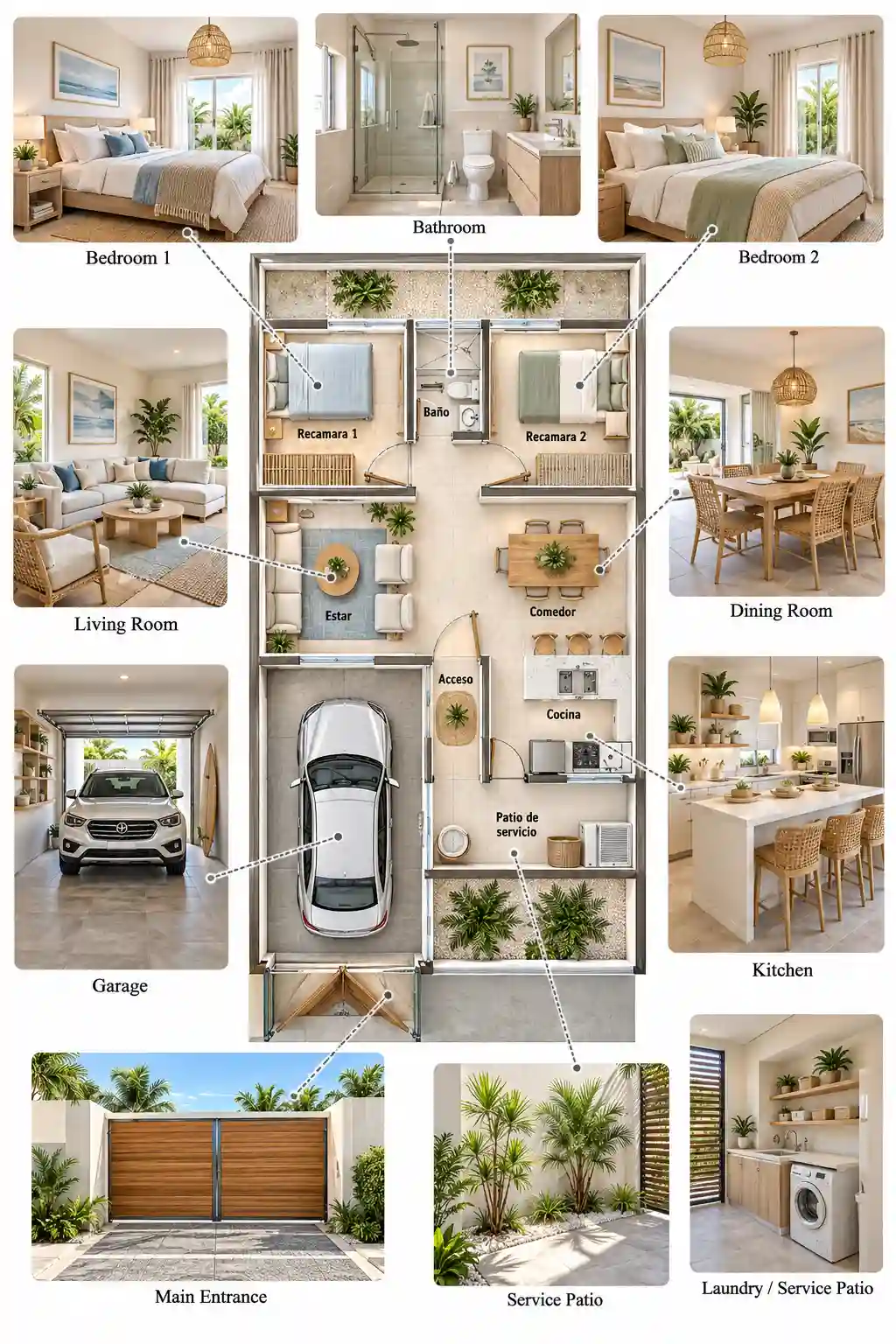
Photorealistic interior rendering transforms individual rooms in a floor plan into realistic interior images. Each image shows details such as furniture, flooring, wall finishes, lighting, and decor, much like a photograph of the finished space.
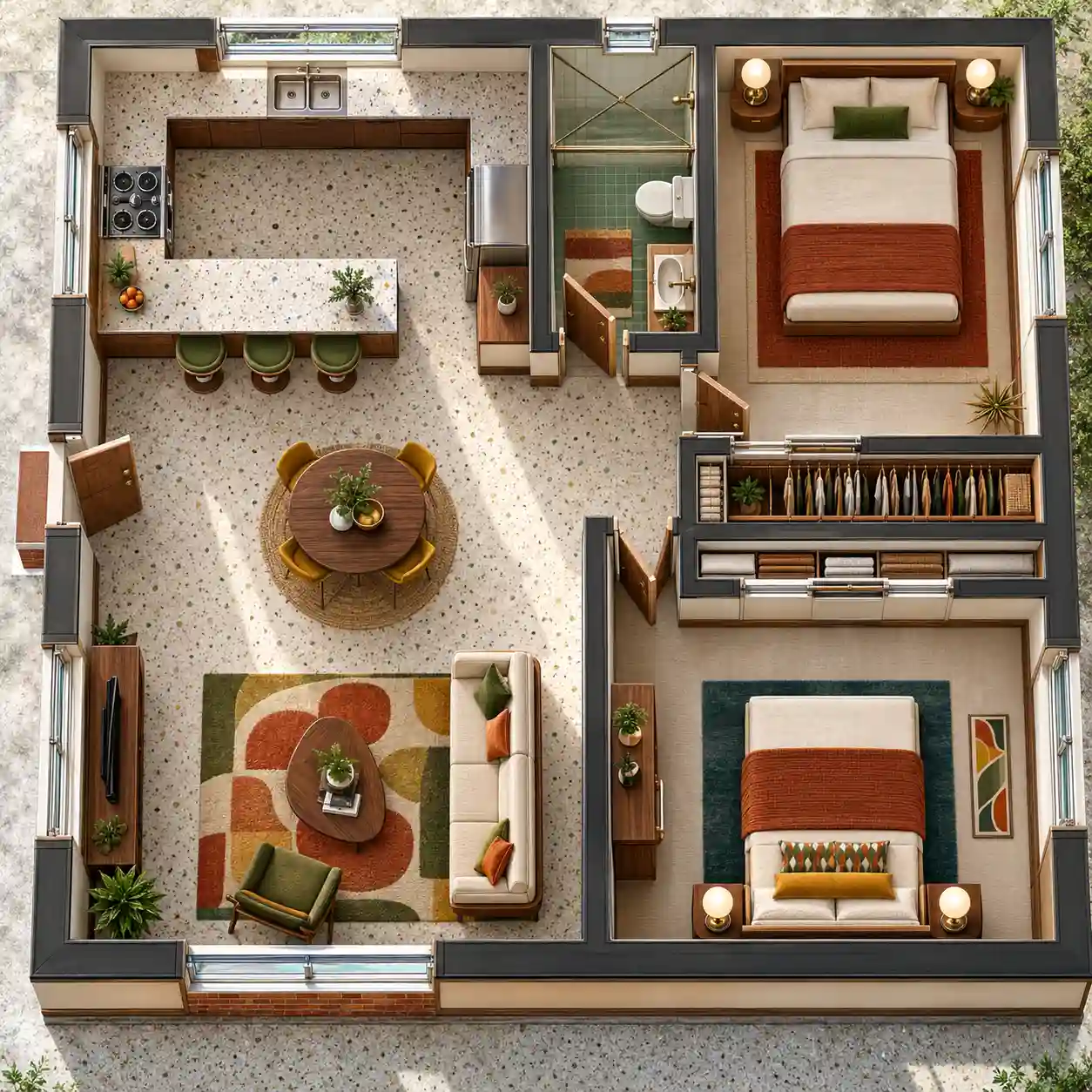
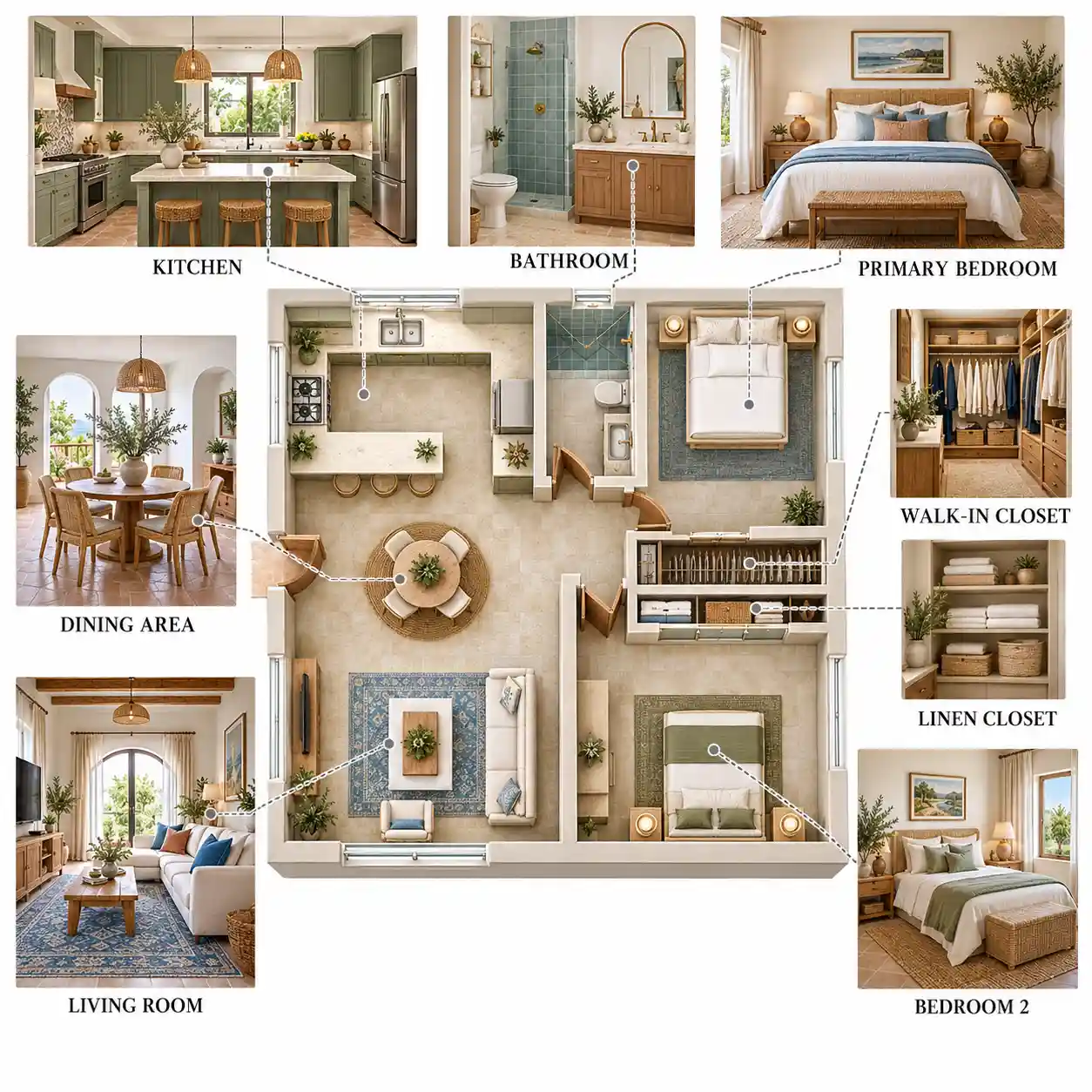
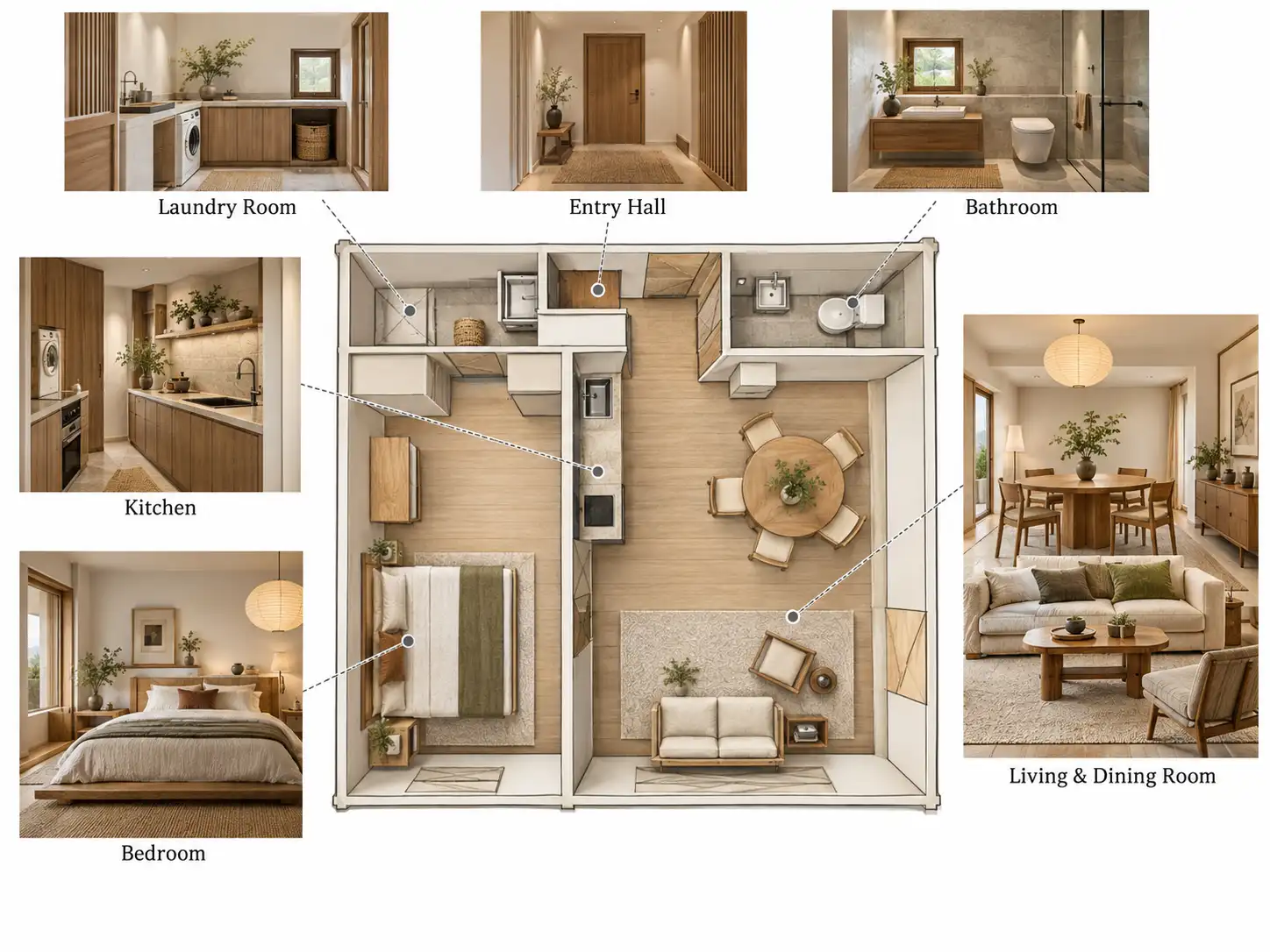
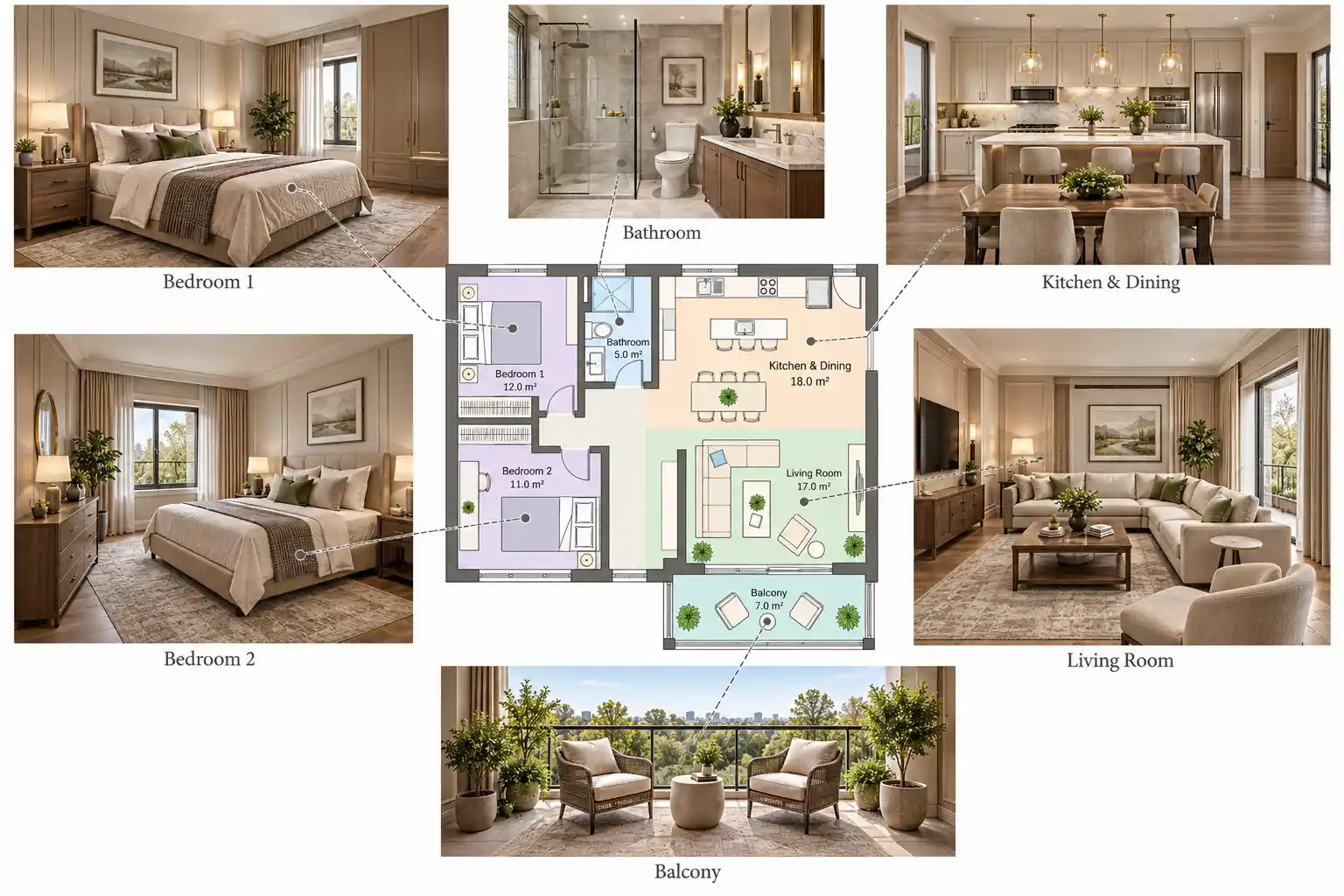
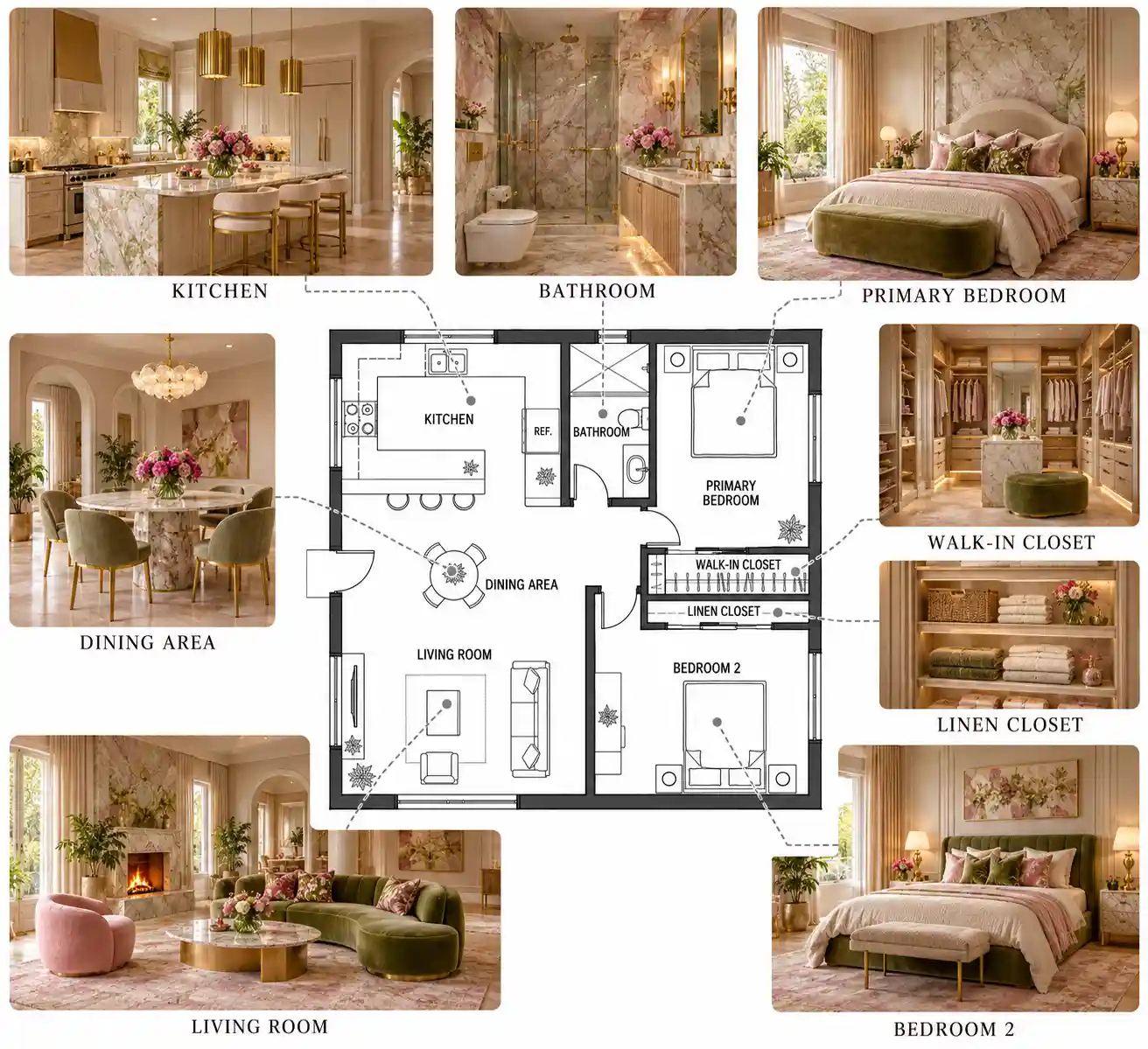
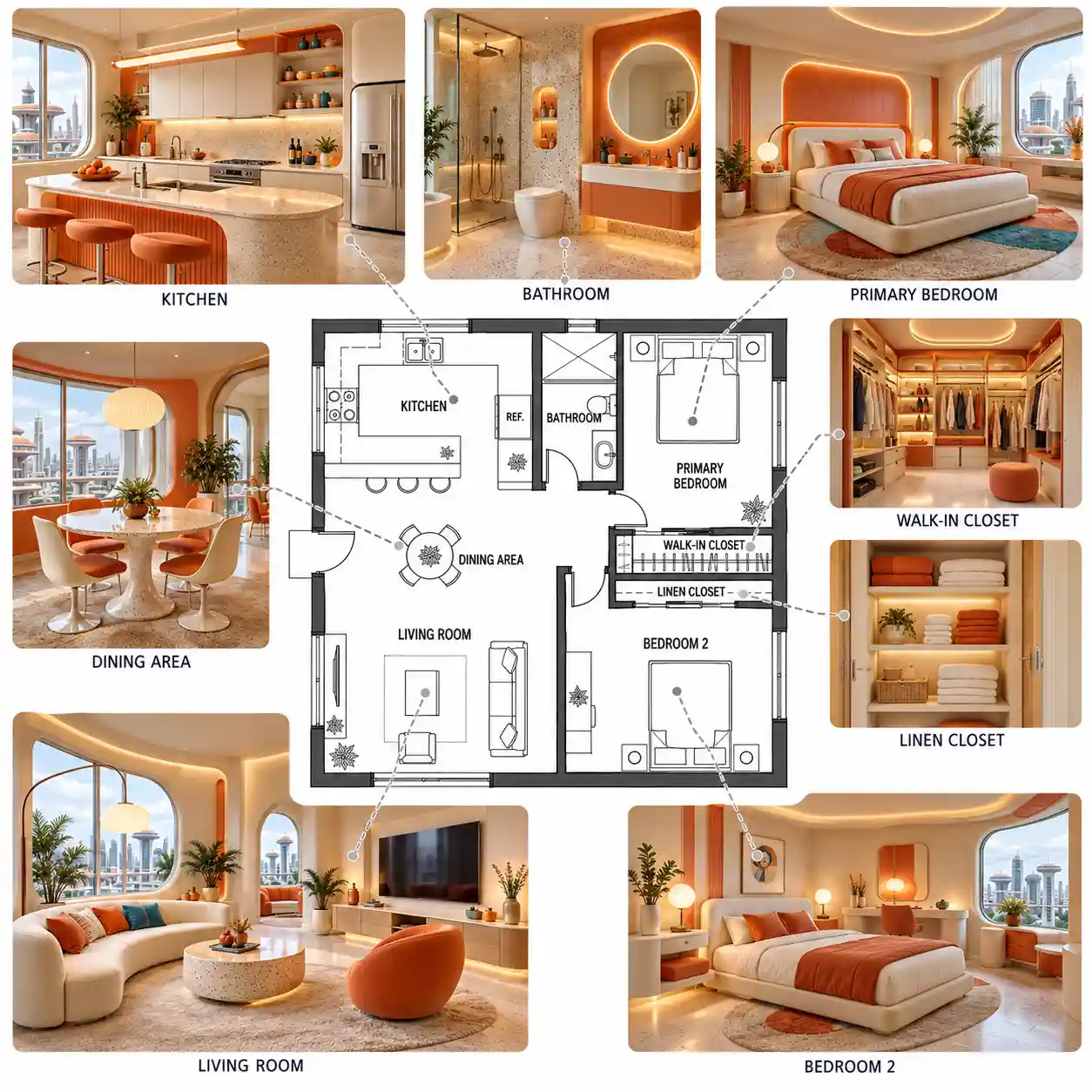
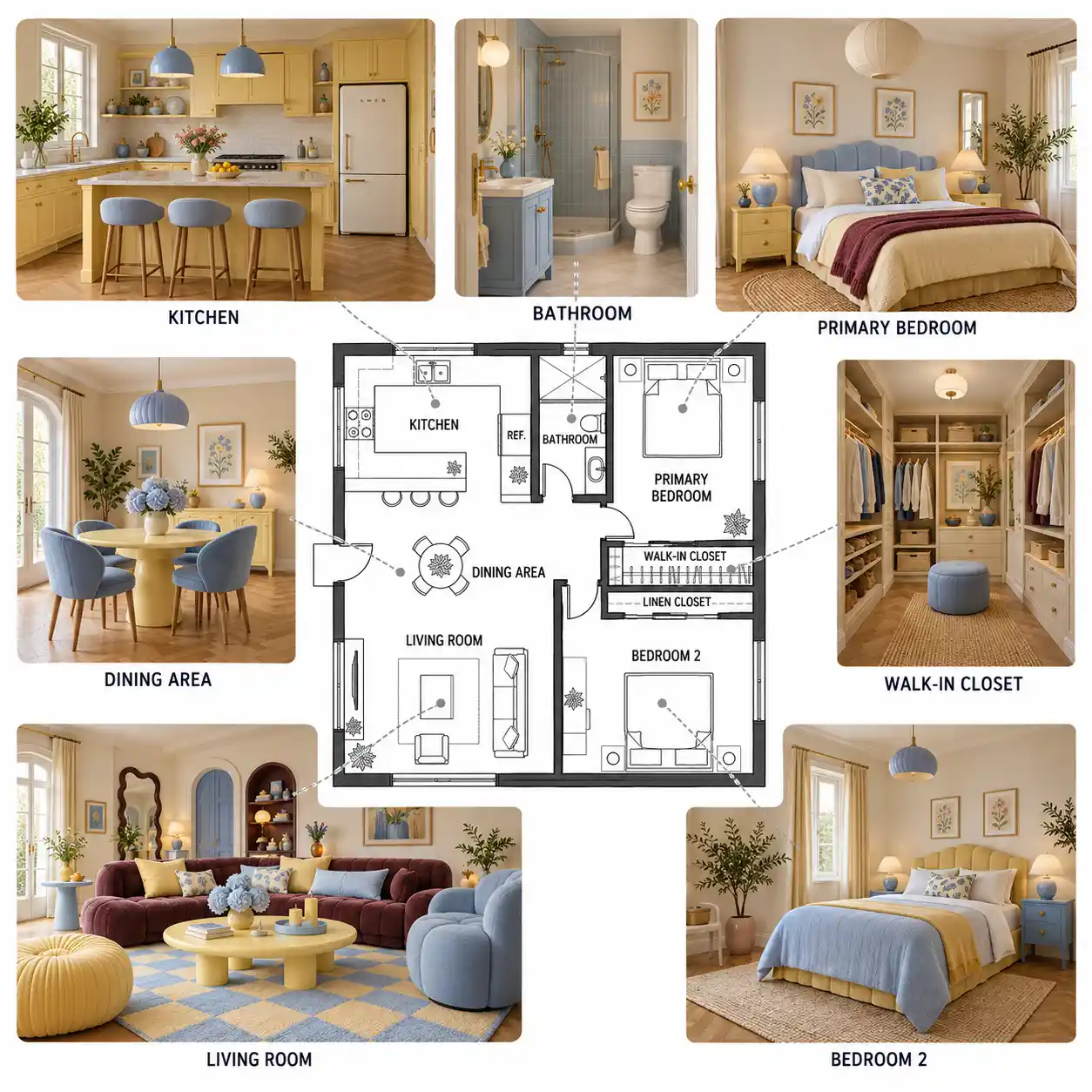
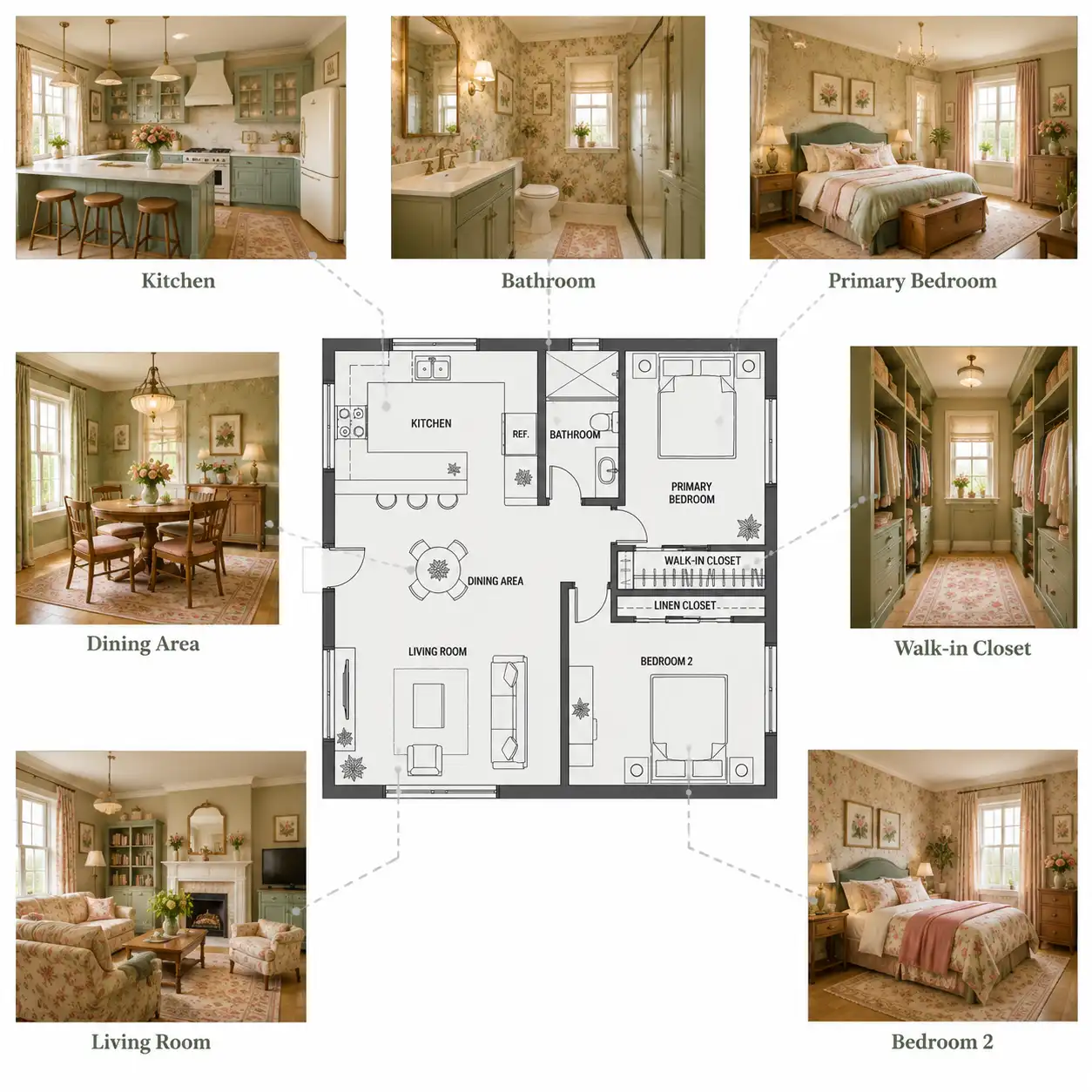
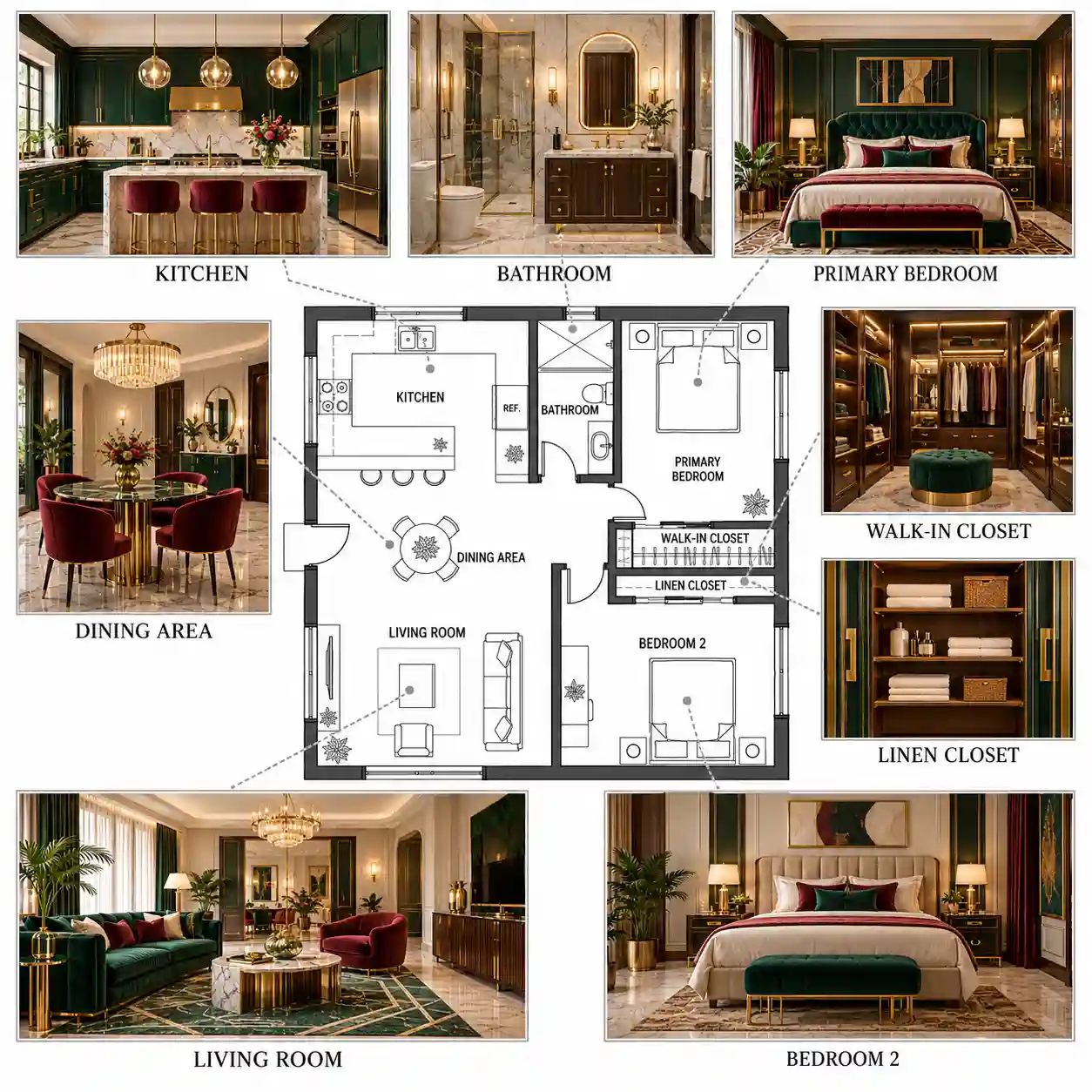
Unlike a 3D floor plan rendering, which presents the entire layout from above, this view pairs the floor plan with separate rendered images of individual rooms. Guide lines connect each image to its corresponding space, so you can see both where a room is located and what its interior could look like.
3D Floor Plan Rendering vs. Photorealistic Interior Rendering
Shows the overall layout from above, including walls, room proportions, furniture placement, and connections between spaces.
Pairs the floor plan with realistic images of individual rooms. Guide lines link each image to its location, making it easier to connect the layout with the room's furniture, materials, lighting, and decor.
So, how can you turn your own floor plan into photorealistic interior renders? Let's walk through the steps.
Create Photorealistic Interior Renders From a Floor Plan in 3 Steps
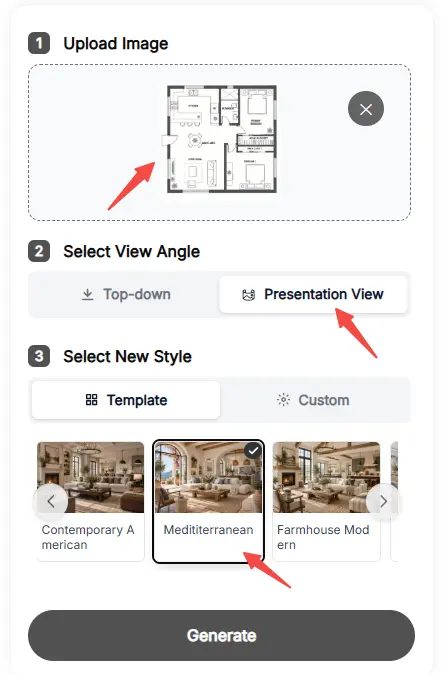
Floor Plan Maker AI's Floor Plan Rendering tool includes a Presentation View that turns floor plans into photorealistic images of individual rooms. Let's use it to see how a floor plan can be paired with realistic interior visuals.
1. Upload Your Floor Plan
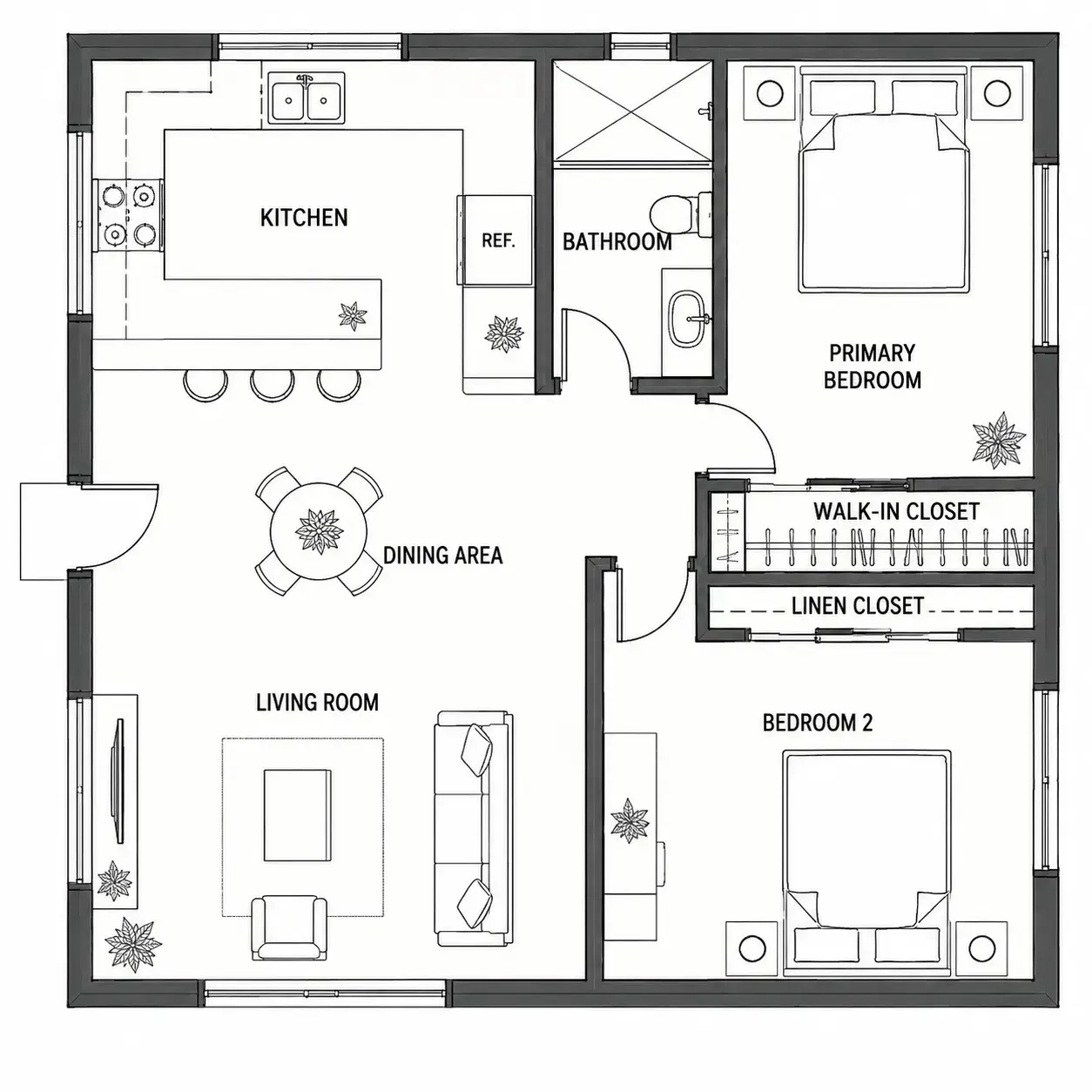
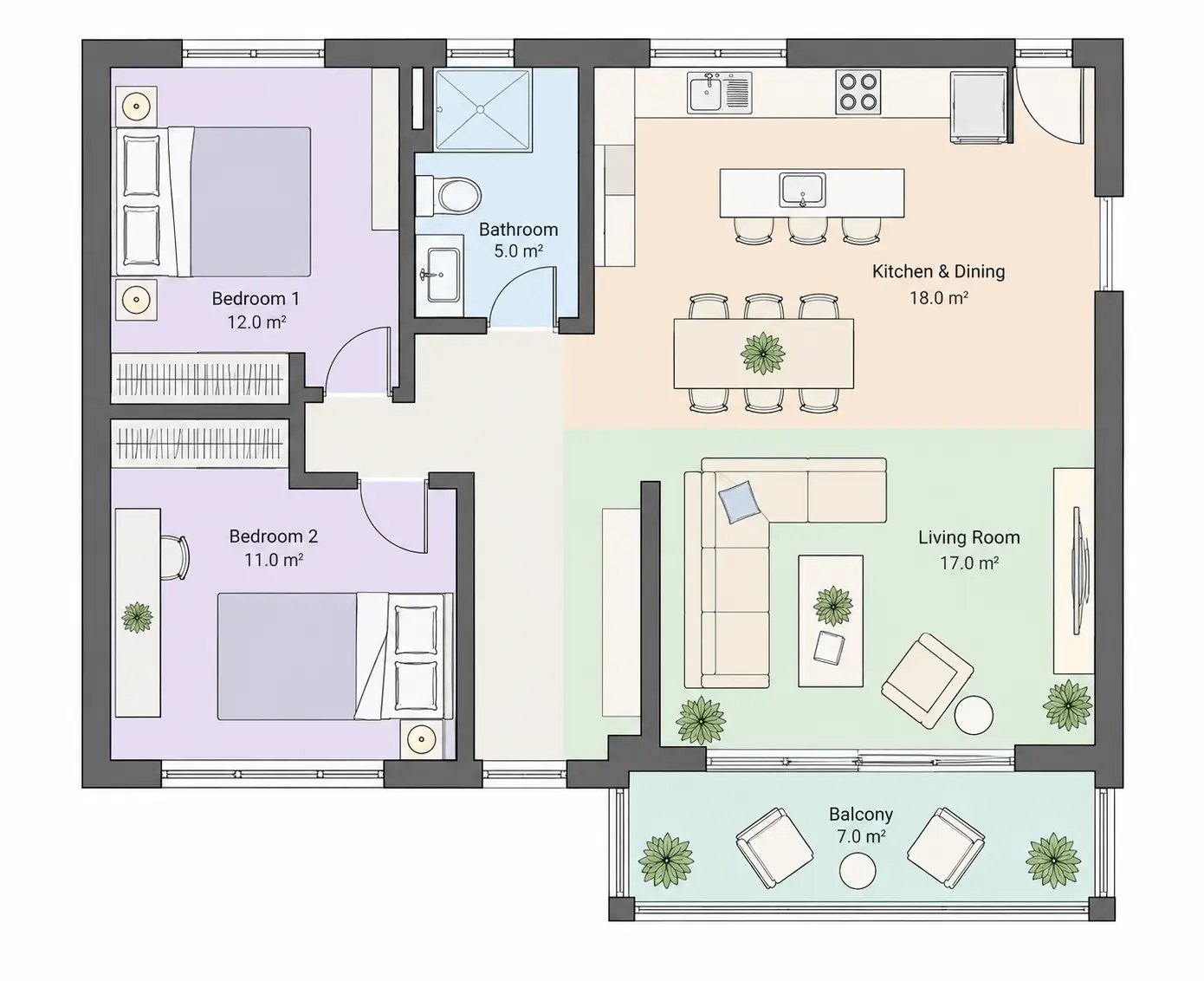
First, upload a floor plan to get started. For this example, I'm using a two-bedroom apartment with a living room, one bathroom, and an open-plan kitchen. This gives us several different spaces to render and compare.
2. Choose an Interior Style
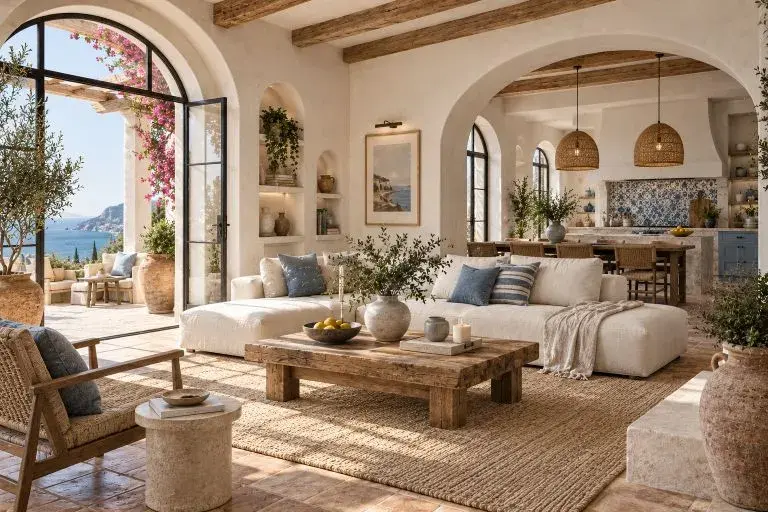
Next, choose an interior style for the renders. For this apartment, I'll go with a Mediterranean style, featuring warm earthy tones, natural materials, and classic Mediterranean details.
3. Generate Your Interior Renders
Once your interior design renders are ready, check them against the original floor plan. The guide lines point to the corresponding rooms, and each image matches the room's orientation and layout, with furniture placed in the appropriate areas. This makes it easy to connect each interior view to its location in the apartment.
4. Generate Your Interior Renders
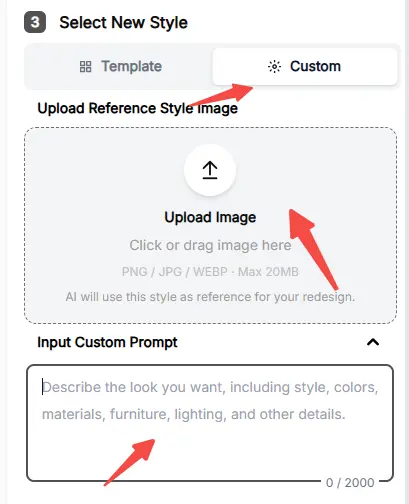
Want to go beyond the preset styles? You can upload a reference image or enter a custom prompt to describe the look you want, from color palettes and materials to furniture and lighting. This gives you more control over the final result, even if you have a very specific interior style in mind.
But what if your floor plan is just a sketch, or you have a specific interior style in mind?
Your Floor Plan and Style Choices Are More Flexible Than You Think
Think you need a perfect floor plan to get started, or that you can only use preset interior styles? Not at all. You can work with the floor plan you already have and use your own references and prompts to get closer to the interior you have in mind.
1. Start With More Than a Standard Floor Plan
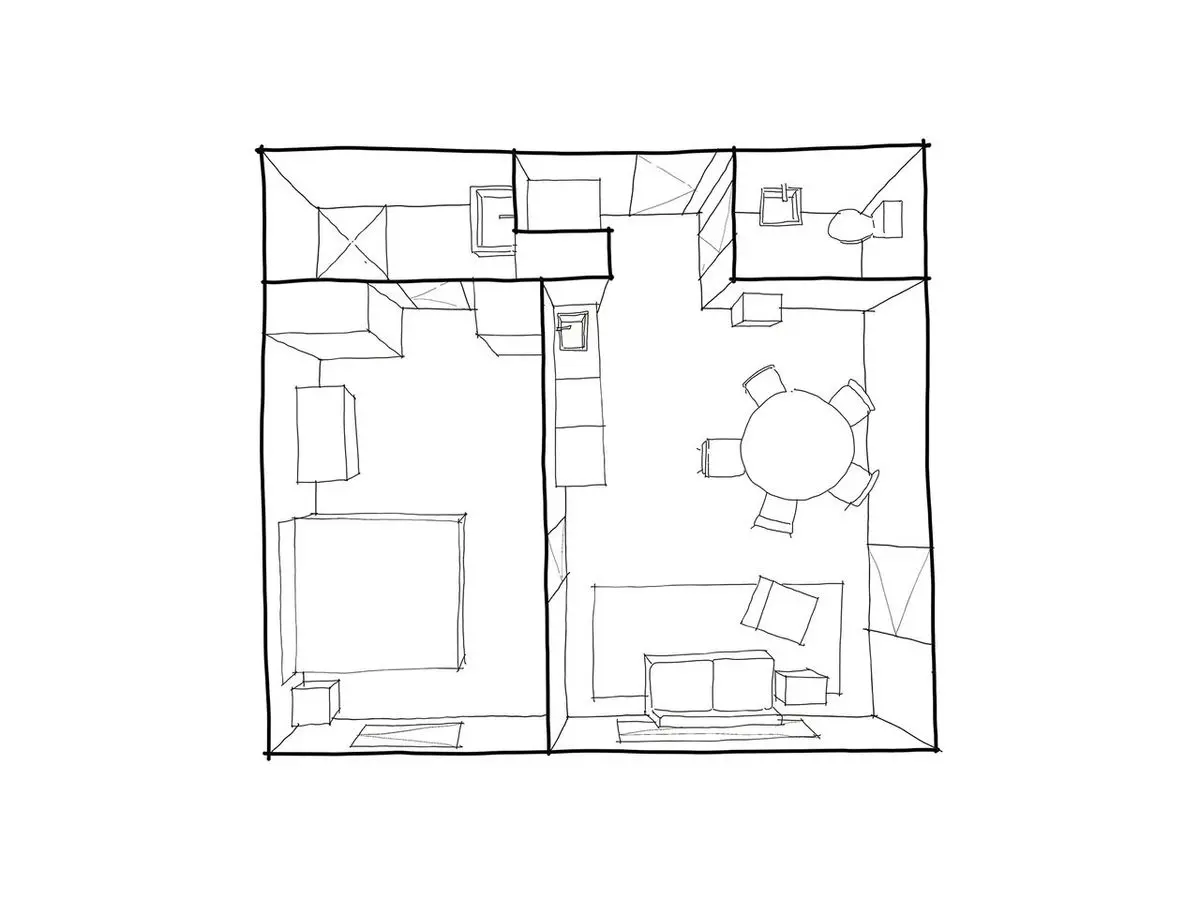
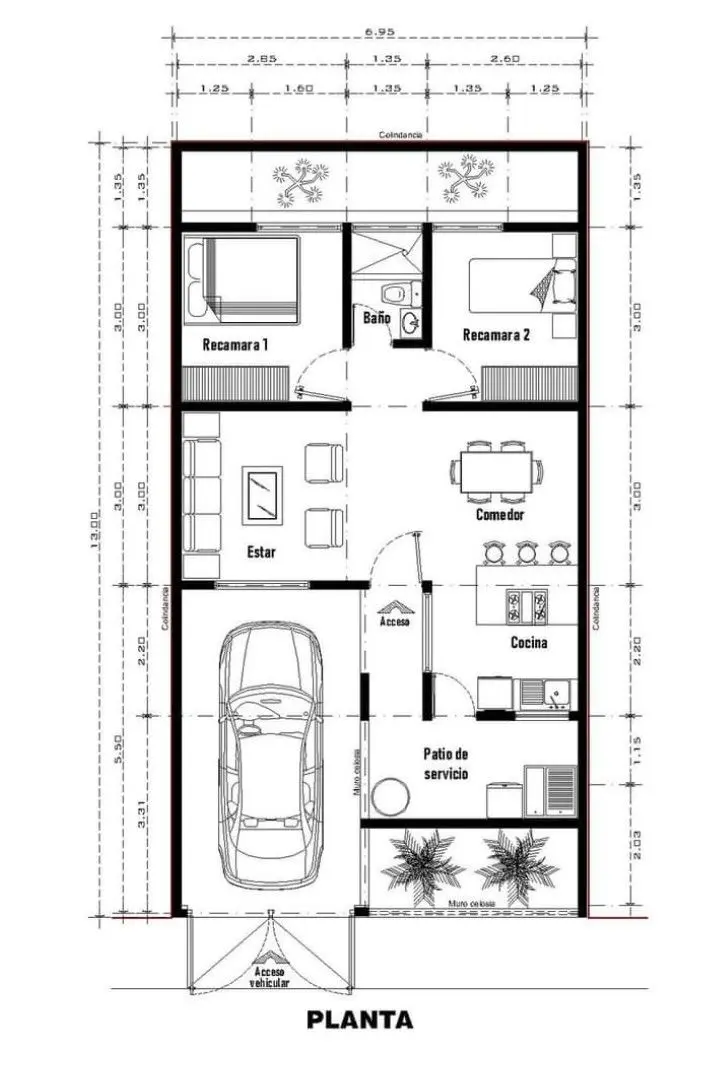
Your starting point doesn't have to be a polished blueprint. You can use a hand-drawn sketch, a colored floor plan, or an architectural drawing to create your renders. No need to redraw everything just to make it look professional first.
2. Use Your Own Interior Reference Images
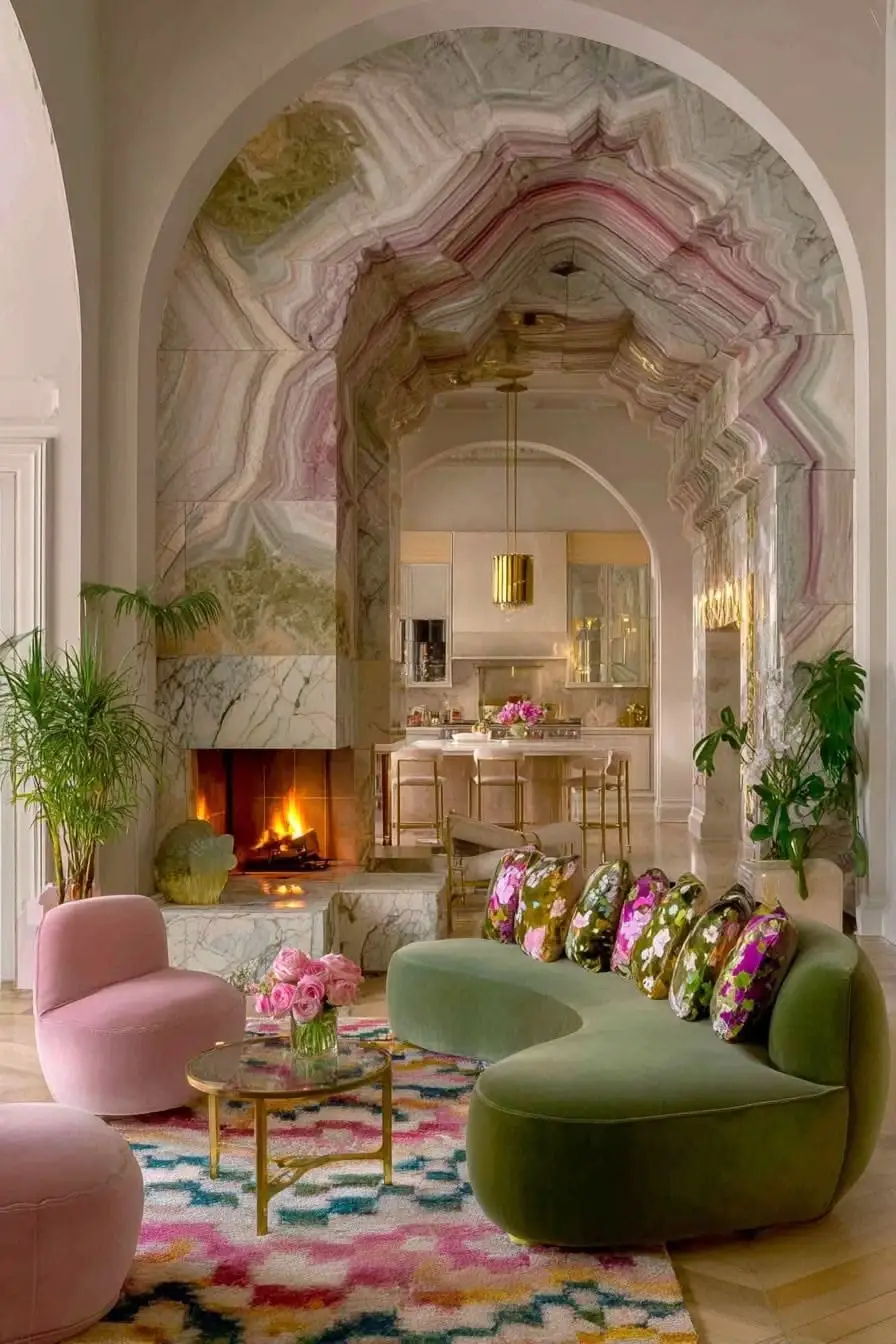
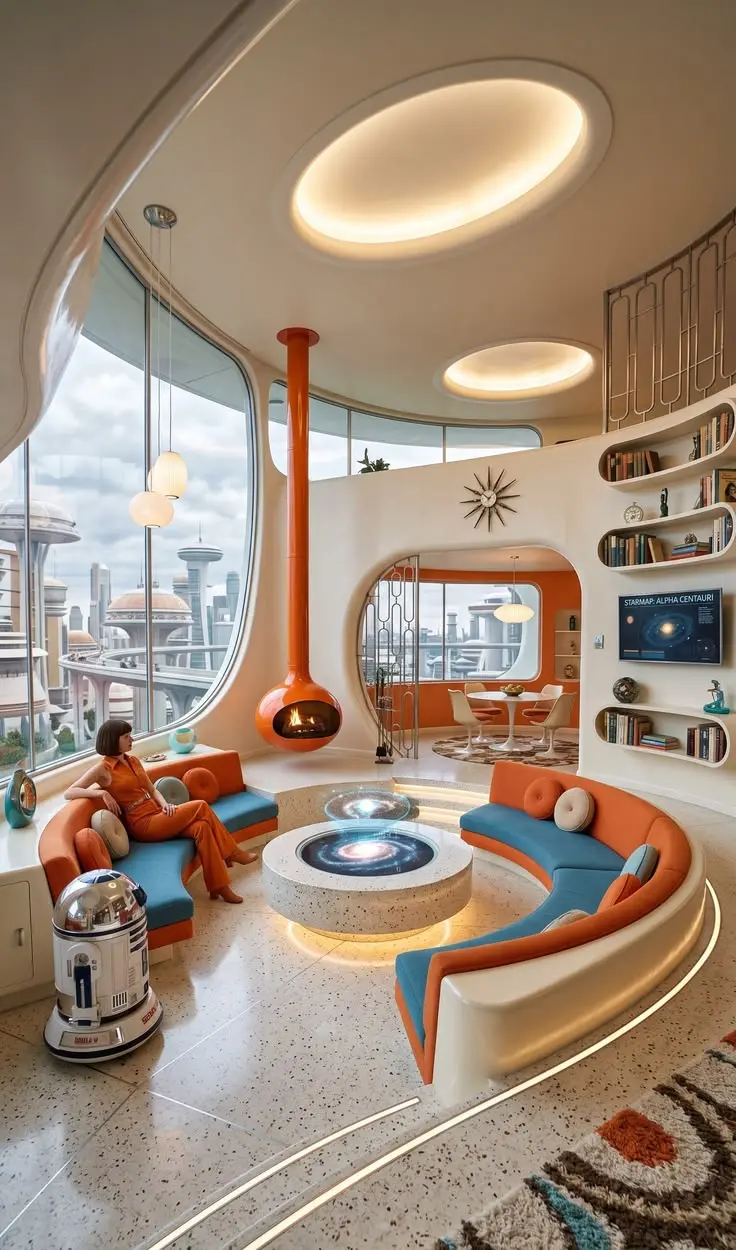
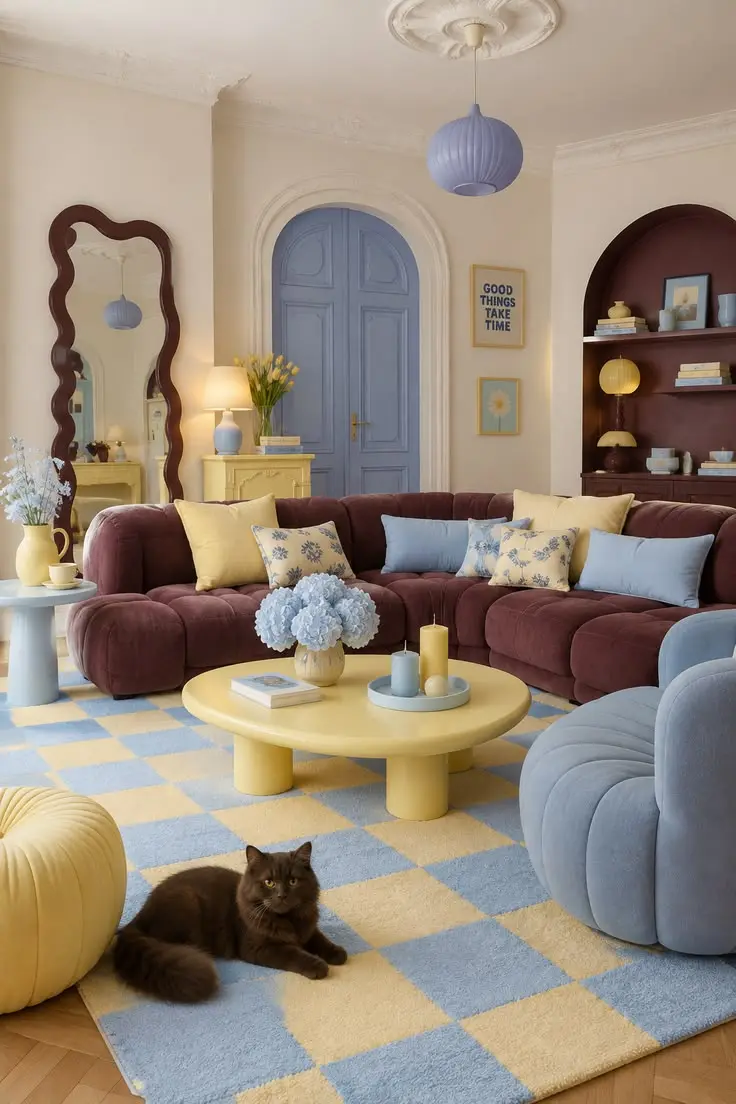
Found a room you love on Pinterest or Instagram? Upload it as a style reference. It could be the luxurious fabrics and ornate details of a velvet palace style, the sleek surfaces of futuristic interiors, or the soft tones of Korean cream-style homes. You're not limited to the preset styles.
3. Describe the Details in Your Own Words
You can also write a custom prompt to guide the result. Specify details like wall colors, furniture, materials, and lighting to get a look that goes beyond a general style label.
Here are two examples:
Prompt 1: English Cottage
Design the whole home in an English cottage style with sage green, warm cream, and dusty rose tones. Use floral wallpaper, natural wood, linen fabrics, and vintage furniture. Add cozy lamps, patterned rugs, fresh flowers, and charming traditional details throughout the living room, kitchen, bedrooms, and bathrooms.
Prompt 2: Art Deco
Design the whole home in an elegant Art Deco style with emerald green, burgundy, and gold accents. Use polished marble, dark walnut, velvet furniture, and brass details. Add geometric patterns, statement lighting, curved furniture, and glamorous finishes throughout the living room, kitchen, bedrooms, and bathrooms.
From early layout ideas to carefully personalized interiors, you can create detailed, cohesive room visuals that reflect your style and bring your ideas to life through photorealistic interior rendering.
What Would Your Dream Interior Look Like?
Try different styles, experiment with colors and materials, and see your ideas take shape in realistic interior renders.
Try Photorealistic RenderingRelated Resources
Before you settle on a layout, take a few minutes to look at it as a whole. These checks can help you spot small problems before they become part of your daily routine.
Learn how to turn a 2D floor plan into a 3D view that shows the layout, walls, and furniture from above.
Get ideas for using AI to explore interior styles and visualize different design possibilities.
Turn a floor plan into a 3D model to view your space in three dimensions.
Frequently Asked Questions
How long does it take to generate photorealistic interior renders?
With a preset style, the rendering process typically takes around 30 seconds. If you upload a reference image or write a more detailed custom prompt, it may take around 30–60 seconds, depending on the level of detail.
Can I use the renders as a guide for my actual home renovation?
Yes. The renders can help you visualize furniture, fabrics, colors, and finishes before making design decisions. You can use them to look for similar furniture and materials or share them with an interior designer to explain what you want. This makes it easier to communicate your ideas, compare options, and bring your dream home closer to reality.
Does each rendered image correspond to a specific room in the floor plan?
Yes. Each rendered image is linked to its corresponding room in the floor plan, making it easier to understand how the interior relates to the overall layout. Depending on the source plan and generated result, some spatial orientations or details may differ, so it's worth checking each view against the original floor plan.
Is photorealistic interior rendering free to use?
Regular users can try the tool with a limited number of free uses. If you're an interior designer or frequently create renders for clients, you can explore the available paid plans for a workflow that better suits your needs.